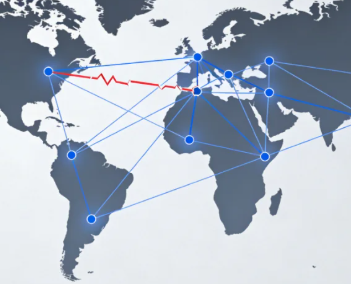







After deploying CDN services like Cloudflare on a website, the access process transforms from a simple client-to-server direct connection into a complex proxy path traversing a global edge network. Data indicates that approximately 351 terabytes ofCDN ConfigurationThe issue triggers Origin DNS errors, with such failures taking an average of 90 minutes to diagnose and resolve. While this architecture enhances performance and security, it also introduces new potential points of failure, includingOrigin DNS ErrorThis is a classic example of configuration issues. This article will delve into specific failure scenarios unique to CDN proxy modes and provide precise troubleshooting and repair solutions for the Cloudflare platform.
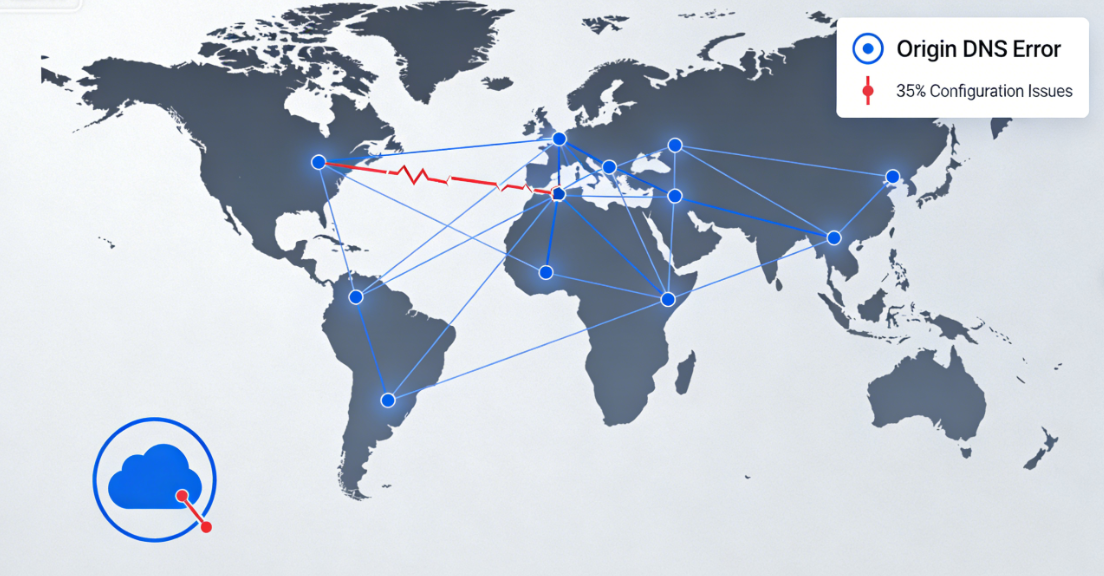
Chapter 1: Reshaping Resolution Paths Under CDN Proxy Architecture
Understanding how CDNs operate is fundamental to diagnosing related errors. In traditional access workflows, domain names resolve directly to the origin server's IP address. Once CDN is enabled, this path is completely altered.
1.1 CDN as the Core Role of Reverse Proxy
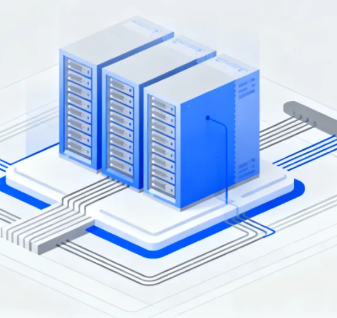
Cloudflare acts as a reverse proxy for the origin server. User requests first reach the nearest Cloudflare edge node, which handles the request on behalf of the origin server. For static resources, the edge node directly returns cached content; for dynamic requests or uncached content, the node must fetch the data from the origin server.
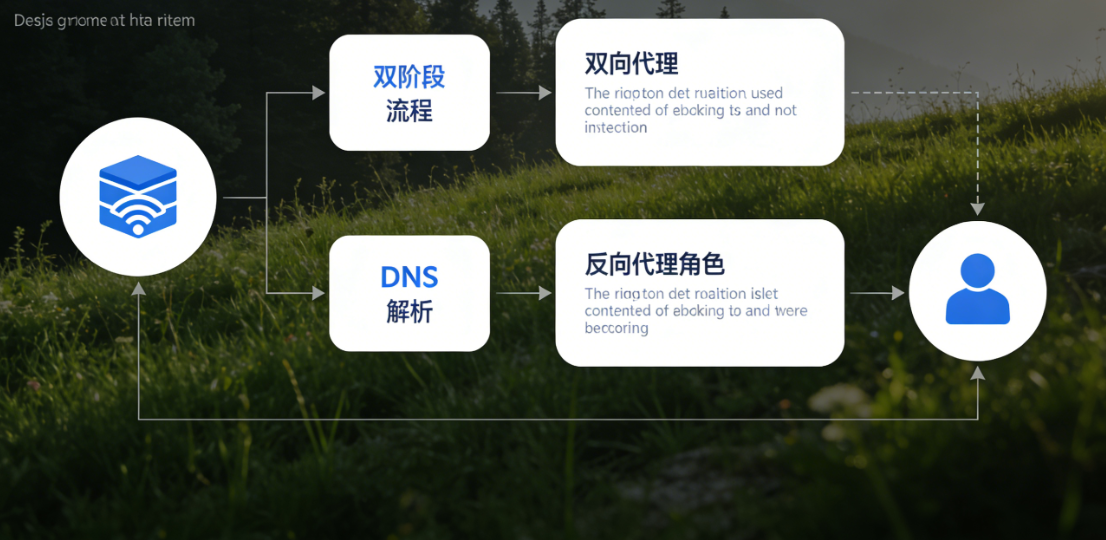
1.2 Two-Stage DNS Resolution Process
This architecture creates two independentDNS resolutionPhase:
- Phase One: Public Domain Name ResolutionUser browser query
www.example.comIts DNS records point to the edge node IP address assigned by Cloudflare. Cloudflare's proxy status (indicated by the orange cloud icon when enabled) determines whether traffic passes through its network. - Phase Two: CDN Origin ResolutionWhen Cloudflare edge nodes need to contact the origin server, they must resolve the origin server address specified in the configuration (e.g.,
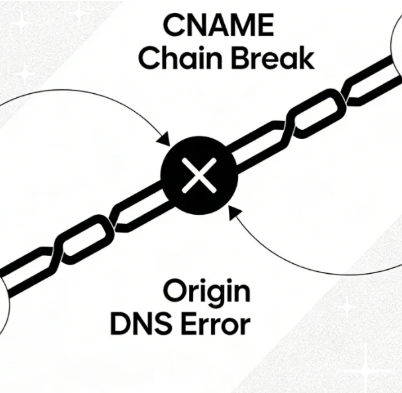
origin.example.comor an IP address). DNS queries at this stage are handled independently by Cloudflare's resolver; failure directly results in the client reporting an Origin DNS Error.
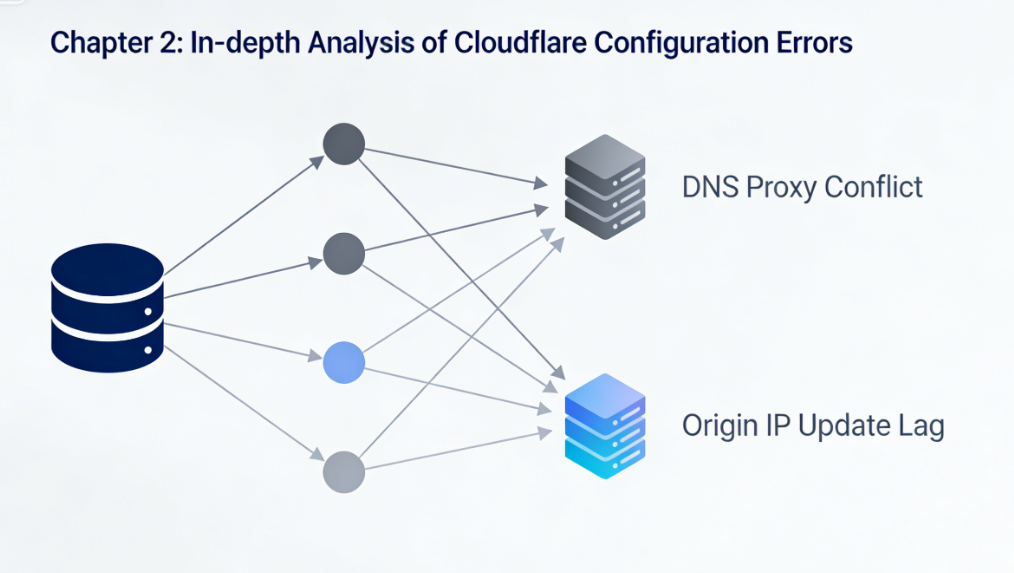
Chapter 2: In-Depth Analysis of Cloudflare-Specific Configuration Errors
In Cloudflare environments, the following types of configuration errors are frequent causes of Origin DNS failures.
2.1 Conflict Between DNS Record Proxy Status and Actual IP Address
This is the most deceptive common mistake. Users add domain records in the Cloudflare DNS panel (such as an A record pointing to the origin server's IP) and enable the orange cloud icon (proxy enabled), but the authoritative NS records at the domain registrar do not correctly point to Cloudflare's nameservers.
- Nature of the FaultTraffic did not actually pass through the Cloudflare network because the NS records were not updated. Instead, it attempted to directly access the origin server's IP address. However, the origin server may have been configured to only accept backhaul traffic from Cloudflare IP ranges, rejecting direct access and resulting in connection failures.
2.2 Information Lag Following Changes to Origin Server Addresses
After the origin server IP changes, users need to update it simultaneously in two locations:
- A record value in the Cloudflare DNS panel(If the origin server is directly represented by an IP address).
- "Origin Server" Configuration in Cloudflare SSL/TLS Settings(especially when using "full" or "strict" SSL mode).
If any update is missed, Cloudflare will attempt to connect to the origin server using the old IP address. This outdated IP may be invalid or point to a different server, resulting in resolution or connection failures.
2.3 SSL/TLS Mode and Origin Server Compatibility Errors
Cloudflare offers flexible SSL/TLS encryption modes. When selecting "Full" or "Strict" mode, the connection between Cloudflare and the origin server also requires encryption.
- Failure ScenarioThe origin server does not have a valid certificate installed.SSL certificateThe hostname used when connecting to Cloudflare does not match the certificate, or it only supports HTTP (port 80) while Cloudflare attempts to access the origin server via HTTPS (port 443). Cloudflare cannot establish a secure origin server connection and may report errors related to resolving or connecting to the origin server.
2.4 Recursive Loop or Failure in Resolving the Origin Server Hostname
If you set the origin server to a hostname in Cloudflare (such as origin.example.com), you must ensure that the hostname:
- Can be correctly resolved in public DNS.
- Its resolution must not be another CNAME record pointing to a Cloudflare proxy, otherwise it will cause a back-to-source loop where Cloudflare resolves its own proxy IP.
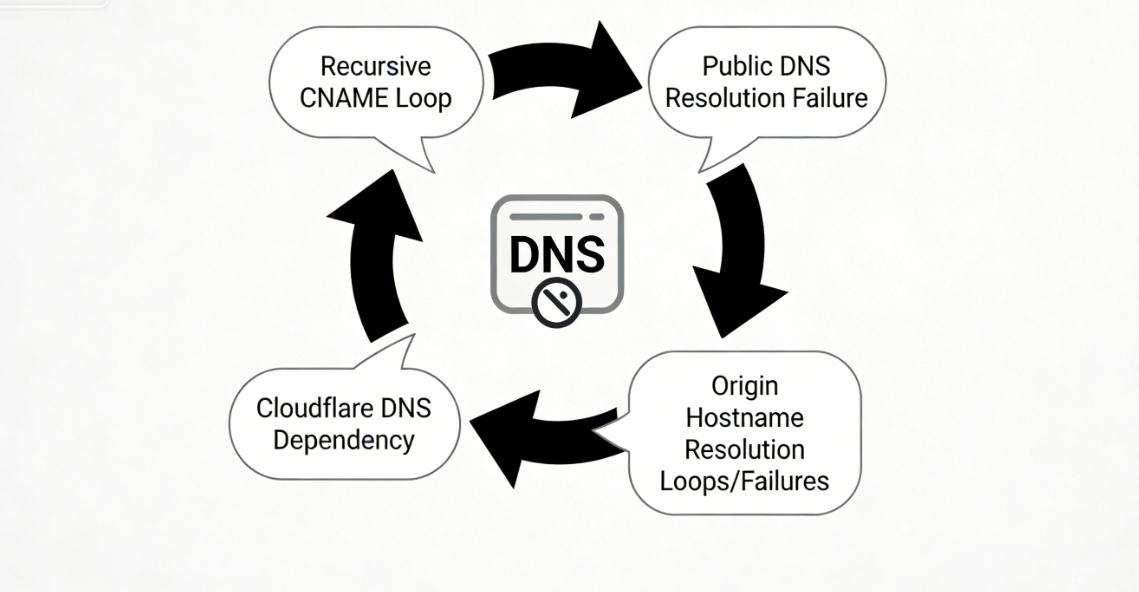
- The resolution of this hostname must not rely on Cloudflare's DNS service to avoid creating a circular dependency.
Chapter 3: Systematic Troubleshooting and Repair Within the Cloudflare Panel
Focus on the Cloudflare control panel and perform the following checks and fixes in this order.
3.1 Verify and Correct DNS Configuration
Log in to the Cloudflare dashboard and navigate to the "DNS" app.
- Step 1: Verify the status of the NS recordsOn the "Overview" page, verify that Cloudflare displays the domain name servers as "Active." If they are not active, you must go to your domain registrar and modify the authoritative NS records to the two domain name server addresses specified by Cloudflare.
- Step 2: CheckA/CNAME recordVerify whether the recorded value is the current accurate source server IP or hostname. For subdomains requiring proxy (such as
www), ensure the cloud icon is orange (proxy enabled); for records that should not be proxied (such asorigin,ftp,mailThe cloud icon must be gray (DNS only). - Step 3: Verify the "origin server" hostname recordIf using a hostname as the origin server, ensure that the hostname record (e.g.,
origin.example.comThe cloud icon is grayed out and points to the correct origin server IP.
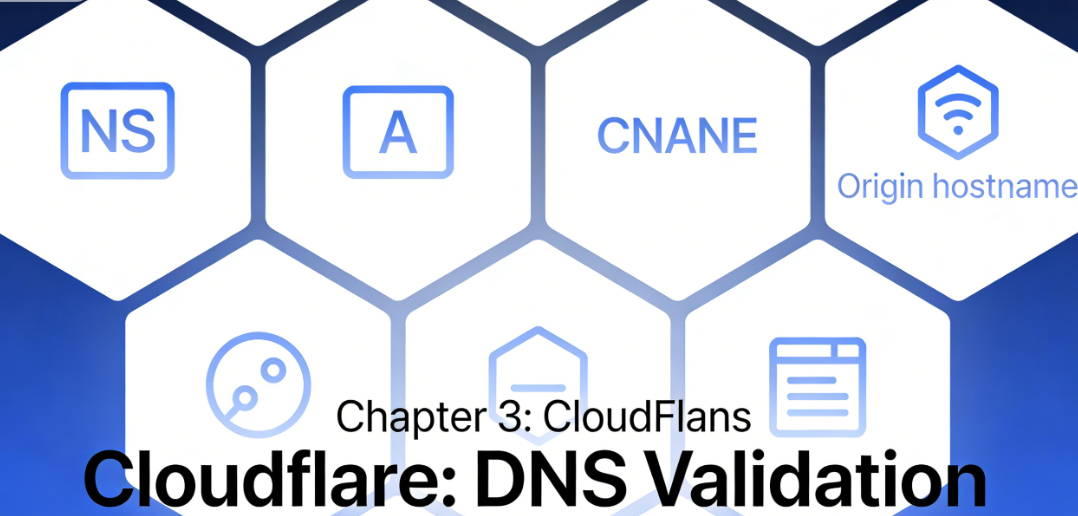
3.2 Update SSL/TLS and Origin Server Settings
Enter the "SSL/TLS" application.
- Step 1: Verify the pattern in the "Overview" section.Select the appropriate mode based on origin server support: "Flexible" (browser-to-Cloudflare encryption only), "Full" (end-to-end encryption; origin server may use self-signed certificates), or "Strict" (end-to-end encryption; origin server must have a valid, trusted certificate).
- Step 2: Verify the "Source Server" configurationUnder the "SSL/TLS" > "Origin Server" tab, verify whether an origin server certificate has been created or a hostname configured. Ensure the origin server hostname or IP address specified here is absolutely accurate.
3.3 Check Firewall and Network Rules
Go to "Security" > "WAF" or "Traffic" > "Rules".
- Step 1: Review firewall rulesCheck whether any custom firewall rules are unexpectedly blocking traffic from all Cloudflare backend IP ranges.
- Step 2: Check the "Network" settingsIn the "Network" application, verify that advanced backend settings such as the "Proxy Protocol" match the configuration of the origin server software.
3.4 Performing Connection Diagnostics and Cache Flushing
- Use "Developer Mode"Under "Cache" > "Configuration," temporarily enable "Developer Mode" to bypass caching and test whether an incorrect response is being cached.
- Clearing the Cloudflare CacheUnder "Cache" > "Configuration," use the "Clear All" function to force edge nodes to fetch new content.

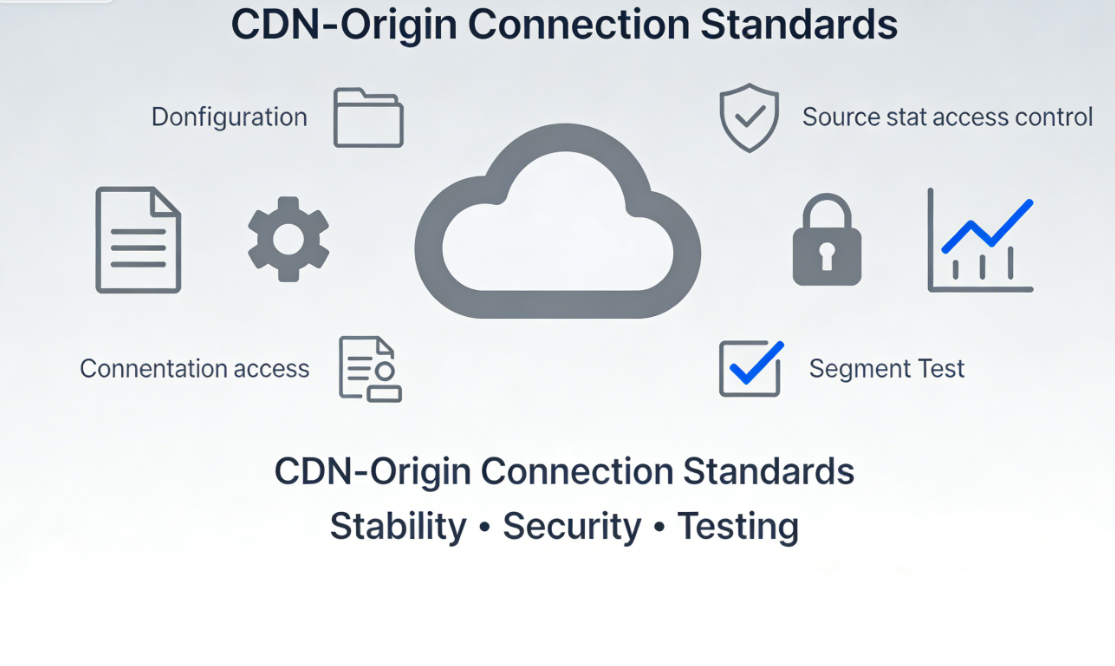
Chapter 4: Establishing Stable CDN-Origin Server Connection Specifications
To prevent future failures, it is recommended to follow these guidelines:
- Documented ConfigurationRecord key information such as the origin server IP, Cloudflare DNS settings, and SSL mode, and synchronize updates whenever changes occur.
- Use gray cloud icons to isolate critical servicesSet cloud icons for records such as email, FTP, database connections, and origin server hostnames to gray to prevent proxy interference.
- Implement access control on the origin serverConfigure the origin server firewall to permit access to essential service ports only from Cloudflare's official origin IP ranges.
- Execute segmented testing before modificationBefore changing DNS or origin server IPs, you can temporarily point a test subdomain to the new environment. Once you confirm that Cloudflare is fetching content from the origin server without issues, switch the primary domain.
summarize
Origin DNS errors in Cloudflare environments fundamentally stem from configuration disconnects in the CDN proxy architecture between origin resolution and connection links. Troubleshooting must focus on the two-stage resolution model, systematically reviewing domain name NS record pointing,DNS PanelEnsure the consistency and accuracy of the entire configuration chain—from recorded values and proxy status to SSL/TLS backend mode and origin server addresses.By pinpointing specific settings within the Cloudflare panel for sequential verification and correction, complex global issues can be transformed into precisely adjustable configuration parameters. This restores stable, efficient data pathways between the CDN acceleration network and origin servers, ensuring security and performance gains are achieved without compromising availability.

Link to this article:https://www.361sale.com/en/82079/The article is copyrighted and must be reproduced with attribution.













![Emoji[wozuimei]-Photonflux.com | Professional WordPress repair service, worldwide, rapid response](https://www.361sale.com/wp-content/themes/zibll/img/smilies/wozuimei.gif)

![Emoticon[baoquan] - Photon Wave Network | Professional WordPress Repair Services, Worldwide Coverage, Rapid Response](https://www.361sale.com/wp-content/themes/zibll/img/smilies/baoquan.gif)


 简体中文
简体中文  English
  日本語
日本語  Français
  Español


No comments