





If you are WordPress As a powerful page builder, you've heard of Elementor, which is the preferred choice of many web developers for its intuitive drag-and-drop interface and powerful customization features. And when you pair it with Elementor Plugin Templates, page building efficiency and design sense will be greatly improved. Today, I'm going to take you through the details of how to install and use these plugins to make your website design a lot more manageable.
What is the Elementor plugin for external templates?
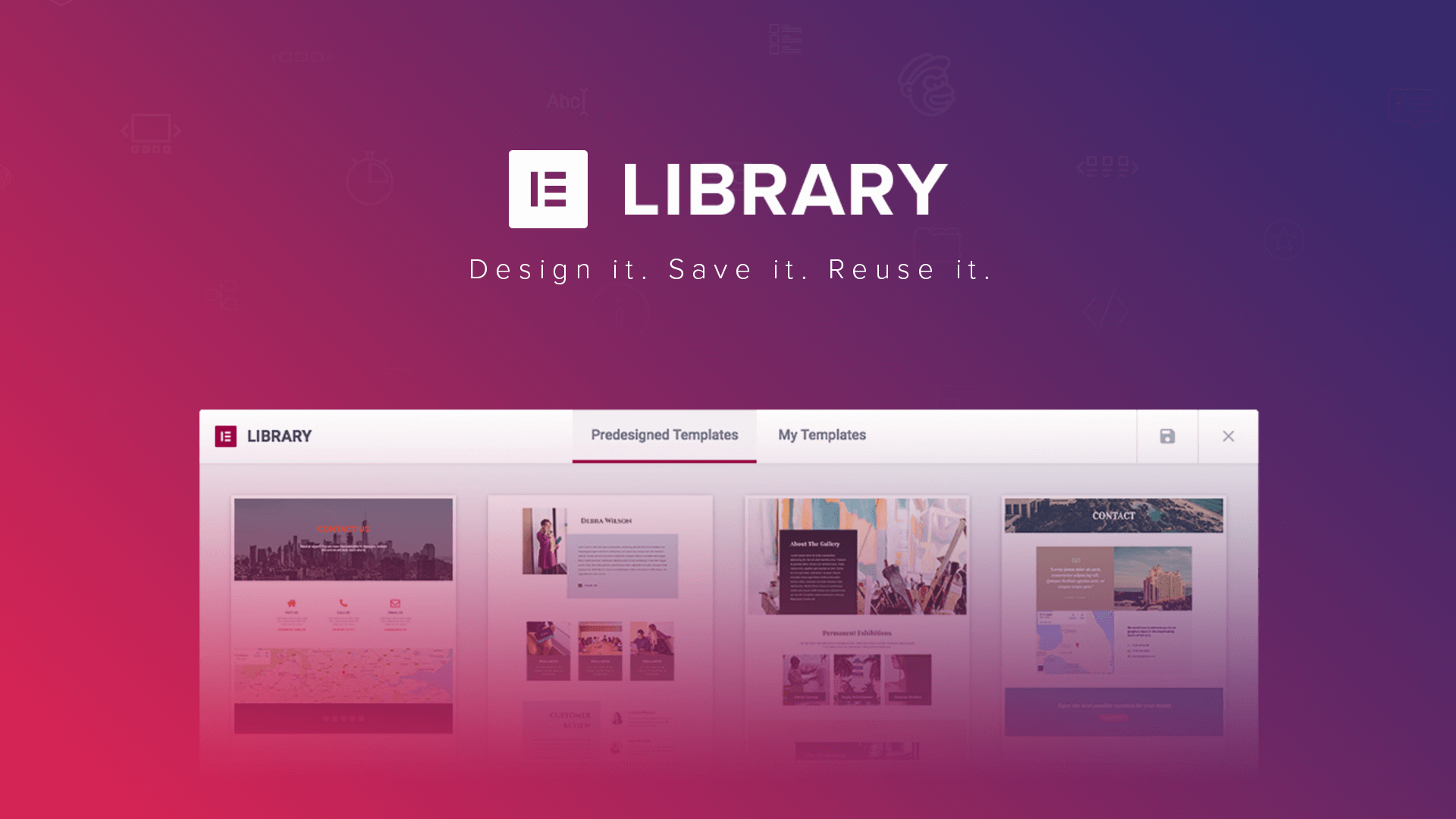
The Elementor plugin for external templates is a tool that can be used with Elementor and is designed to provide users with preset page templates, layouts and design elements. These templates cover a wide range of common pages such as the homepage, about us, product showcase, contact information, etc., making website building not only more efficient, but also saving a lot of time by not having to design from scratch.
![Image [2] - Complete Guide: How to Install and Use Elementor Plugin for External Templates](https://www.361sale.com/wp-content/uploads/2026/01/20260107095013870-image.png)
Why choose the Elementor plugin template?
Using ready-made templates is an excellent way to boost efficiency. If you wish to build a professional and beautiful website quickly, the template plugin will undoubtedly help you get twice the result with half the effort. The different template styles make it suitable for all types of websites - whether it's a personal blog, a corporate website, or an e-commerce platform. Moreover, even without design experience, you can create your own website with simple drag-and-drop operations.
![Image [3] - Complete Guide: How to Install and Use the Elementor Plugin for External Templates](https://www.361sale.com/wp-content/uploads/2026/01/20260107094952521-image.png)
How to install Elementor plugin for external templates?
Installing the Elementor plugin for external templates is very easy, follow these steps and you'll be done in minutes.
Step 1: Install the Elementor plugin
First, if you haven't alreadyInstalling Elementor plugin, then start with it:
- Log in to the WordPress backend.
- Find and click Plugins > Install Plugin in the left menu.
- Type "Elementor" in the search box and click "Install".
- Once the installation is complete, click "Enable" to activate the plugin.
![Image [4] - Complete Guide: How to Install and Use Elementor Plugin for External Templates](https://www.361sale.com/wp-content/uploads/2026/01/20260107095029222-image.png)
Step 2: Install the Elementor plugin for external templates
After installing Elementor, you can choose between two ways to install the plugin for plugin templates: through the WordPress plugin repository or by uploading it manually.
1. Installation through plug-in libraries
- In the WordPress backend, click Plugins > Install Plugin.
- Search for the Elementor template plugin you need, e.g. "ElementsKit".
- After selecting the plugin, click "Install" and enable it.
![Image [5] - Complete Guide: How to Install and Use the Elementor Plugin for External Templates](https://www.361sale.com/wp-content/uploads/2026/01/20260107095409994-image.png)
2. Manual upload plugin
- Go to the plugin's official website or a third-party platform and download the Elementor template plugin you need (usually as a .zip file).
- Go back to the WordPress backend and click Plugins > Install Plugin > Upload Plugin.
- Select the plugin file you downloaded, click "Install", and then enable the plugin.
![Image [6] - Complete Guide: How to Install and Use the Elementor Plugin for External Templates](https://www.361sale.com/wp-content/uploads/2026/01/20260107095448435-image.png)
How to use Elementor plugin for external templates?
After installing the plugin, the next step is to actually do it. With simple steps, you can easily start using the template to enhance the design of your page.
Step 1: Choose a template
- Open the page you want to edit and click "Edit with Elementor".
- Once you are in the Elementor editing interface, click the "Add Template" button in the left panel.
- In the template library, select the appropriate template according to your needs and click the "Insert" button to apply it to the page.
![Image [7] - Complete Guide: How to Install and Use the Elementor Plugin for External Templates](https://www.361sale.com/wp-content/uploads/2026/01/20260107095507322-image.png)
Step 2: Customize the template
After the template is imported, you can personalize it to suit your needs:
- Modify text and images
Click on the text box or image to enter the left panel for editing, easily change the content or replace the image. - Adjusting the layout and style
Drag elements to resize, change paragraph spacing, fonts, background colors, etc. to make the template more in line with your style. - Adding new elements
If desired, new elements can be added to the template, such as buttons, icons or videos, to further refine the page content.
Step 3: Preview and Publish
After you finish editing, don't forget to click the "Preview" button on the bottom right corner to see the effect. After confirming that there is no error, click "Publish" to update the page to your website.
Common Elementor plugin recommendations for external templates
When choosing an Elementor plugin for external templates, there are some popular plugins that can help you build pages more efficiently. Here are a few good plugins I recommend for you:
1. Elementor Template Kit
Elementor Template Kit provides a large number of beautiful templates covering a variety of page design needs. Whether you are making a corporate website or a personal blog, Template Kit provides you with a rich selection of templates, each of which can be quickly edited with Elementor's drag-and-drop functionality.
![Image [8] - Complete Guide: How to Install and Use the Elementor Plugin for External Templates](https://www.361sale.com/wp-content/uploads/2026/01/20260107095602216-image.png)
2. Envato Elements for Elementor
The Envato Elements plugin provides you with thousands of high-quality templates, illustrations, videos and other design elements. You can use this plugin to import content from Envato directly into Elementor, greatly enriching your page design resources.
![Image [9] - Complete Guide: How to Install and Use the Elementor Plugin for External Templates](https://www.361sale.com/wp-content/uploads/2026/01/20260107095639302-image.png)
3. Crocoblock Kava Template Library
Crocoblock Kava Template Library provides users with a wide range of creative Elementor templates for a variety of business and personal needs. From e-commerce sites to marketing pages to portfolio displays, Kava has your design needs covered.
![Image [10] - Complete Guide: How to Install and Use the Elementor Plugin for External Templates](https://www.361sale.com/wp-content/uploads/2026/01/20260107095648907-image.png)
concluding remarks
leverage Elementor Plugin TemplatesThe process of building a website becomes incredibly efficient and flexible. You no longer need to design from scratch, but rather quickly complete page construction through simple template import and personalization adjustments. Whether you're a WordPress beginner or an experienced developer, Elementor's template plugins can help you immensely. Through these plug-ins, designing a website becomes less complicated, truly realizing the perfect combination of efficiency and aesthetics.

Link to this article:https://www.361sale.com/en/85454The article is copyrighted and must be reproduced with attribution.




















![Emoji[wozuimei]-Photonflux.com | Professional WordPress repair service, worldwide, rapid response](https://www.361sale.com/wp-content/themes/zibll/img/smilies/wozuimei.gif)

![Emoticon[baoquan] - Photon Wave Network | Professional WordPress Repair Services, Worldwide Coverage, Rapid Response](https://www.361sale.com/wp-content/themes/zibll/img/smilies/baoquan.gif)


 简体中文
简体中文  English
  日本語
日本語  Français
  Español


No comments