




First, why focus on site security
A lot of people build good WordPress After the website, the first step is to choose a theme, install plug-ins and beautify the page, but with the increase of website content and visits, security risks gradually appear. Attackers may use the theme or plugin editor in the backend of the PHP Insertion of malicious code into a file that causes the website to be tampered with or accessed abnormally.
Common consequences include:
- The page is tampered with and bounces to illegal or spammy websites;
- Search rankings drop and search engines mark the site as dangerous;
- The site is blocked by the hosting provider, resulting in interrupted access.
Often these problems are not due to a lack of technical skill, but rather to uncontrolled back-end document editing functions.disallow_file_edit You can improve website protection at key points and reduce the risk of being attacked.
Second, what is the WordPress background file editor
WordPress allows administrators to modify website files directly in the backend by default.
The access path is:
- "Appearance" → "Theme Editor"
- "Plugins" → "Plug-in Editor"
These editors show .php Documentation source code that can be directly modified to adjust functionality or interface.
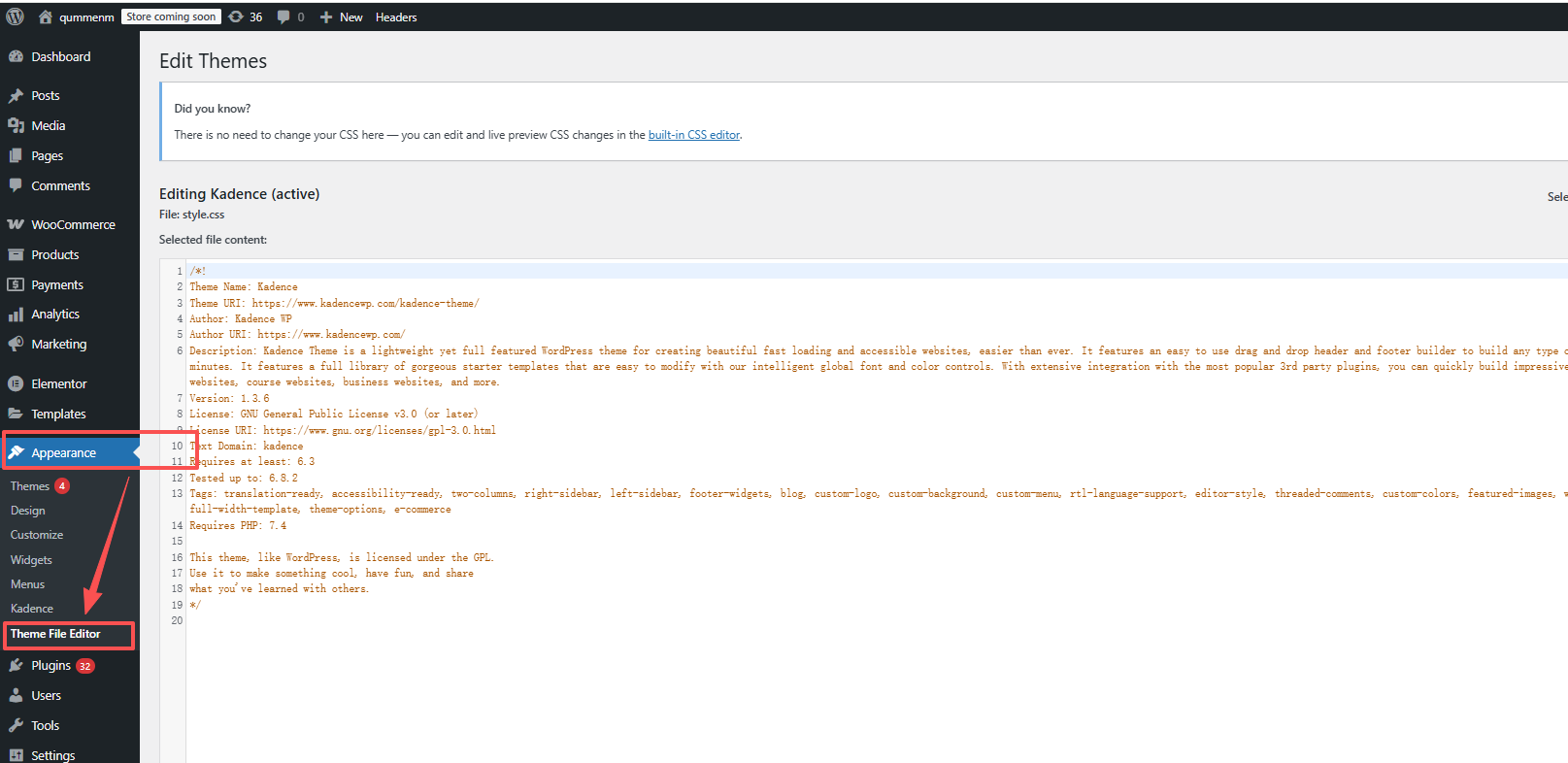
This is convenient, but hidden security risks. Anyone with background privileges can modify system files, hackers can even insert Trojan scripts in the background to control the entire site. This is equivalent to leaving a "spare key" in the core area of the site, increasing the risk.
III. What is DISALLOW_FILE_EDIT?
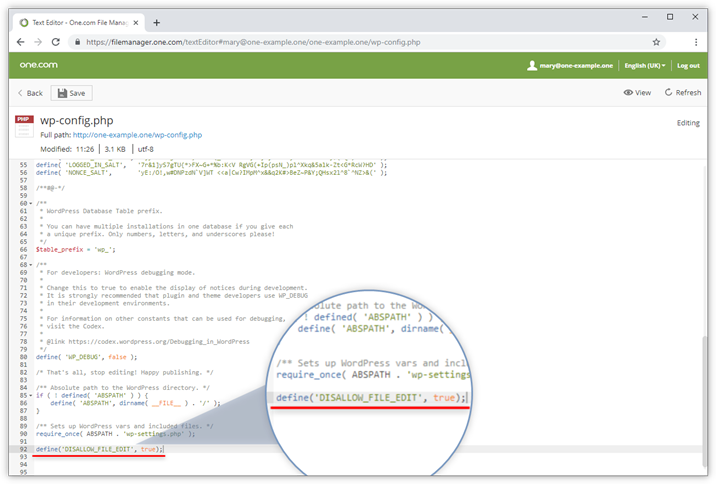
disallow_file_edit is a security constant built into WordPress to disable background file editing.
When enabled:
- "Theme Editor" disappeared from the backend menu;
- The "Plugin Editor" is no longer displayed;
- Site files cannot be modified directly in the backend.
Simply put, adding a line of code prevents tampering with website files through the backend editor.
Most professional developers add this configuration before the site goes live, especially for sites maintained by multiple people.
Add DISALLOW_FILE_EDIT correctly.
Step 1: Find the wp-config.php file
wp-config.php is located in the WordPress root directory and is the same as the wp-content respond in singing wp-admin Same level.
It can be accessed using the following methods:
- Use the server administration panel (e.g. 1Panel, pagoda) into the file manager.
- Use an FTP utility such as FileZilla to connect to the server and download the file.
- Use the file manager provided by the host for direct operation.
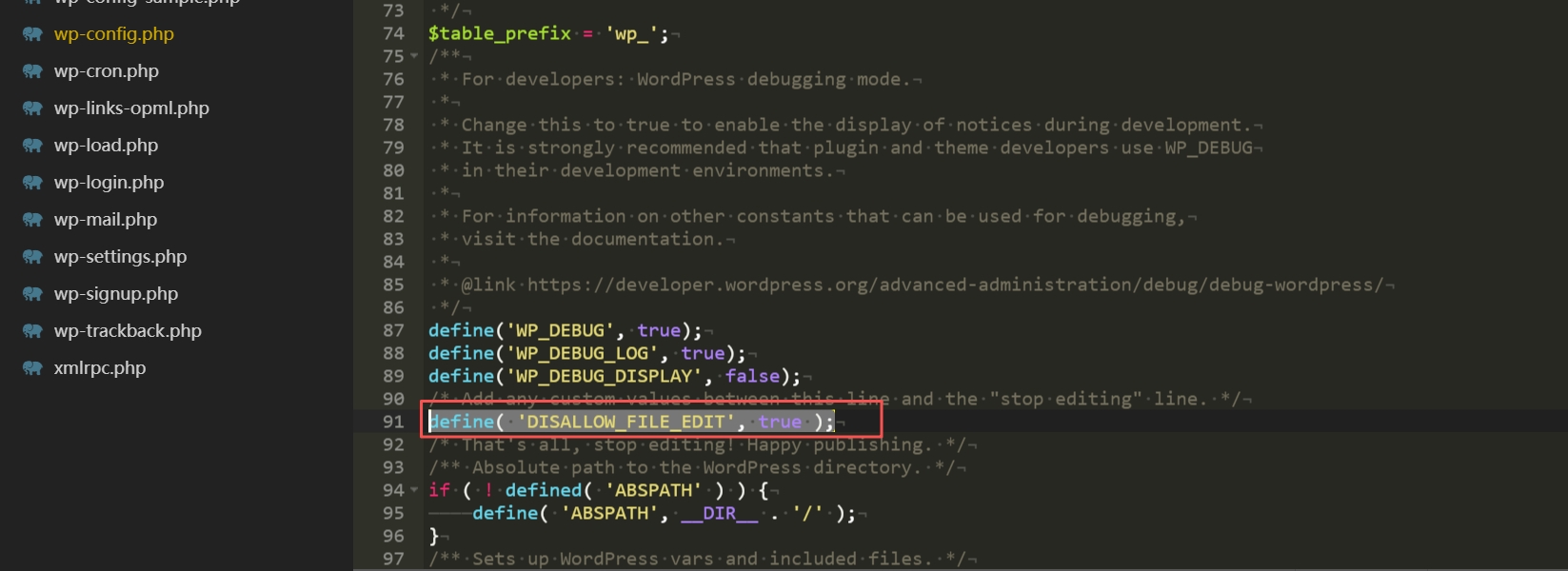
Step 2: Add code
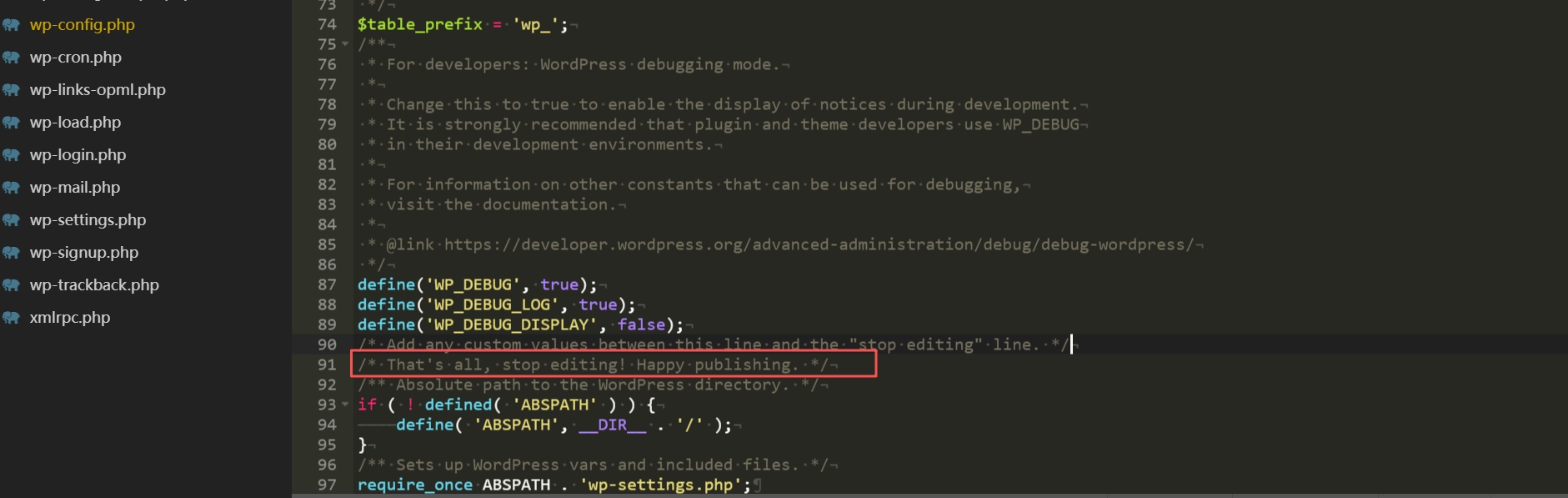
Find it in the file:
/* That's all, stop editing! Happy publishing. */
Added above:
define('DISALLOW_FILE_EDIT', true);
Save and upload to overwrite the original file.
Step 3: Check if the settings take effect
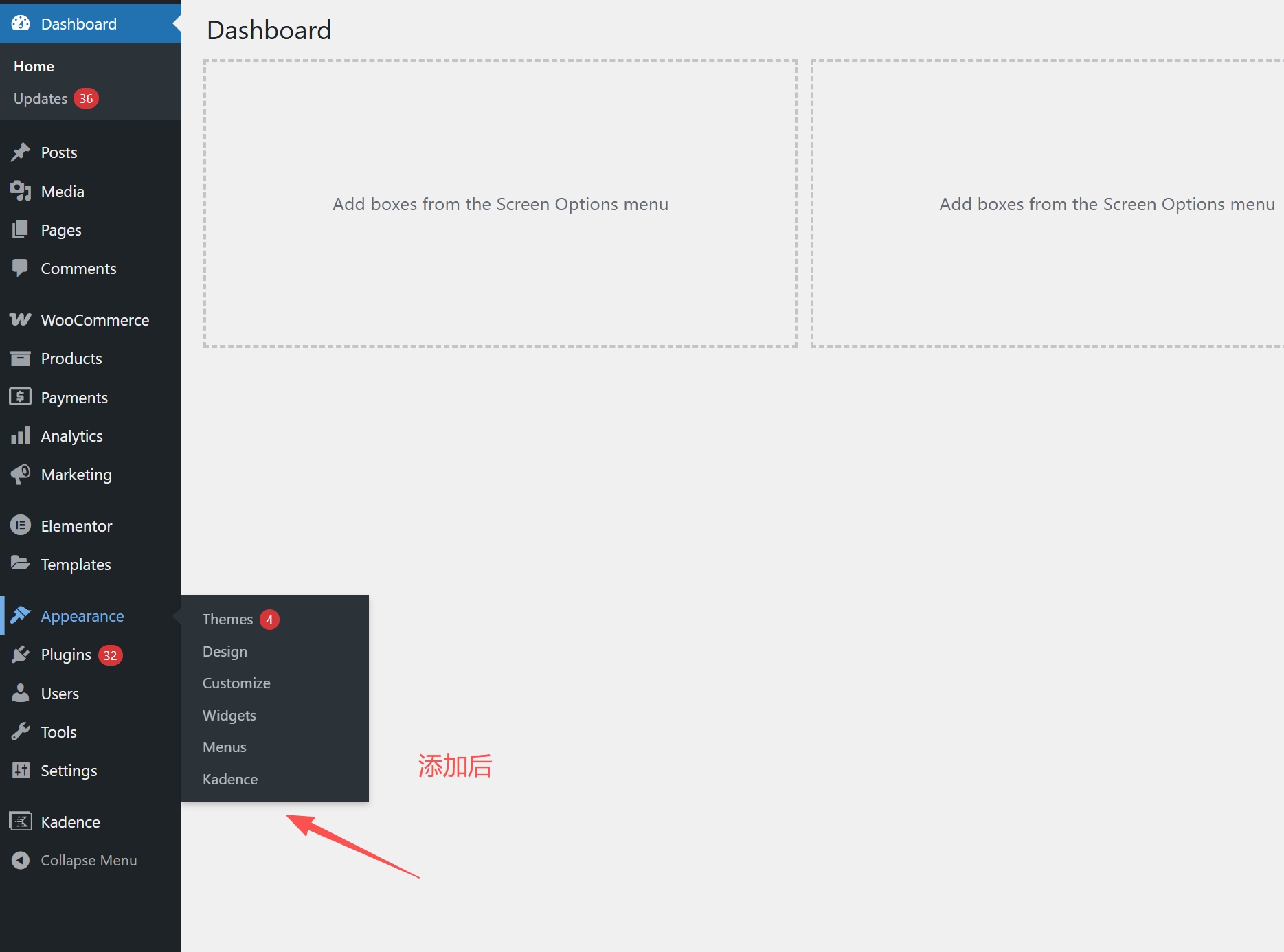
Log in to the backend, open the "Appearance" menu, and find that "Theme Editor" has disappeared; "Plugin Editor" is no longer displayed in the "Plugins" menu. Plugin Editor" is no longer displayed in the "Plugins" menu.
At this time, the background file editing function has been turned off, effectively reducing the risk of tampering.
V. Alternative methods of editing documents after disabling background editing
![Image [7]-Enable DISALLOW_FILE_EDIT to eliminate malicious code editing](https://www.361sale.com/wp-content/uploads/2025/10/20251029143531491-image.png)
After closing the backend editor, the code can still be modified in a secure way:
Method 1: Use FTP or Server Panel
pass (a bill or inspection etc) FTP Or panel access to the site directory, edited locally and then uploaded files, the operation is safe and can be retained file backup to reduce the risk.
Method 2: Use subtopics (Child Theme)
Child themes can retain custom changes when the parent theme is updated, preventing updates from overwriting changed files.
Ideal for users who frequently tweak theme files.
Method 3: Use Code Snippets plug-in (Code Snippets)
The plugin allows you to manage custom snippets in the backend without having to modify PHP files directly, making it easy and secure to use.
Precautions when using DISALLOW_FILE_EDIT
![Image [8]-Enable DISALLOW_FILE_EDIT to eliminate malicious code editing](https://www.361sale.com/wp-content/uploads/2025/10/20251029143654296-image.png)
- Make sure a file access method is available, such as FTP or a panel tool.
- Pay attention to the grammatical completeness when inserting code and avoid omitting semicolons or quotation marks to prevent blank pages on your website.
- This line of code does not fully protect the site and needs to be matched:
- Regular Updates for WordPress, Themes and Plugins
- Strong passwords and double authentication
- Security plug-ins and data backup
VII. Summary
Website security is like the foundation of a building; the stronger the foundation, the fewer subsequent problems.
define('DISALLOW_FILE_EDIT', true); You can close the background file editing portal to reduce the risk of misuse and potential attacks.
Master this operation to add an extra layer of protection to your website. This line of code is a basic and necessary protection for sites maintained by multiple people or sites with security requirements.
For more WordPress security optimization tips and site building experience, visit 361sale Official WebsiteGet practical tutorials and security solutions to make your website run more stable.

Link to this article:https://www.361sale.com/en/79321The article is copyrighted and must be reproduced with attribution.















![Emoji[wozuimei]-Photonflux.com | Professional WordPress repair service, worldwide, rapid response](https://www.361sale.com/wp-content/themes/zibll/img/smilies/wozuimei.gif)

![Emoticon[baoquan] - Photon Wave Network | Professional WordPress Repair Services, Worldwide Coverage, Rapid Response](https://www.361sale.com/wp-content/themes/zibll/img/smilies/baoquan.gif)


 简体中文
简体中文  English
  日本語
日本語  Français
  Español


No comments