





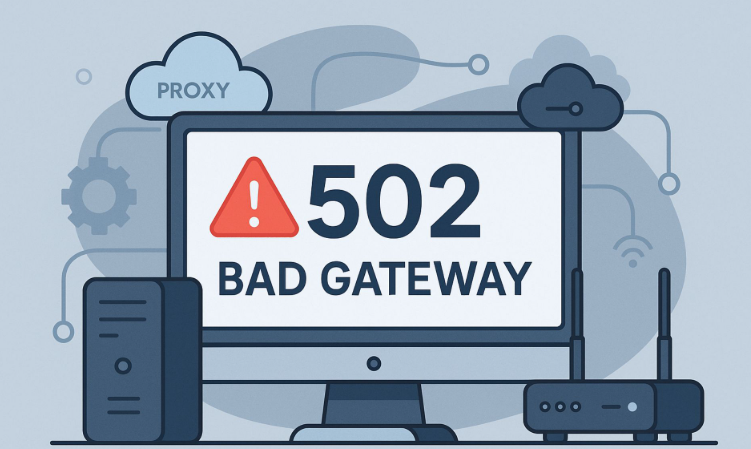
When the browser displays "502 Proxy Error"When an error is made, it means that the reverse
Step 1: Check Proxy Service Status
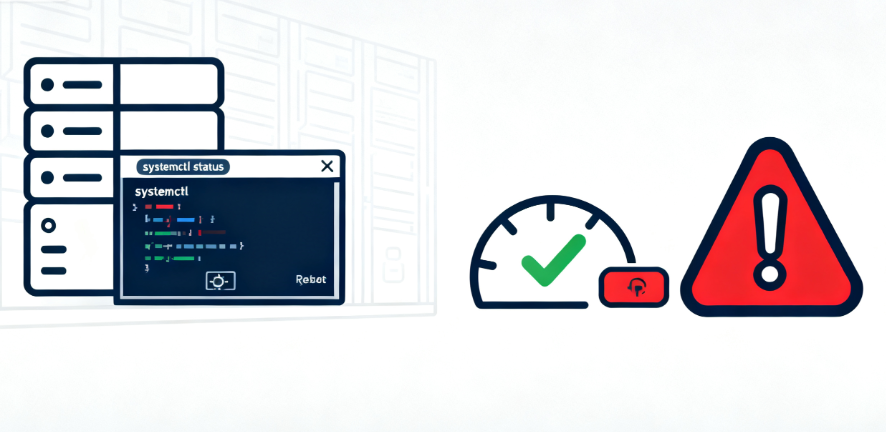
The status of the proxy server directly affects the accessibility of the website, and you need to confirm its operational status first.
1.1 Verify the operational status of the proxy service
Check that the reverse proxy service is functioning properly. Use thesystemctl status nginxor systemctl status haproxy command to check the status of the service. If the service stops abnormally, you need to restart the service immediately.
1.2 Confirm port listening status
Use the netstat -tulpn | grep :80 and netstat -tulpn | grep :443 commands to confirm that the proxy server is listening on the correct ports. Make sure that no other processes are occupying these ports to avoid port conflicts.
Step 2: Troubleshooting Network Connectivity Issues
Network connectivity issues are a common cause of 502 Proxy Error and require a systematic check of network connectivity.
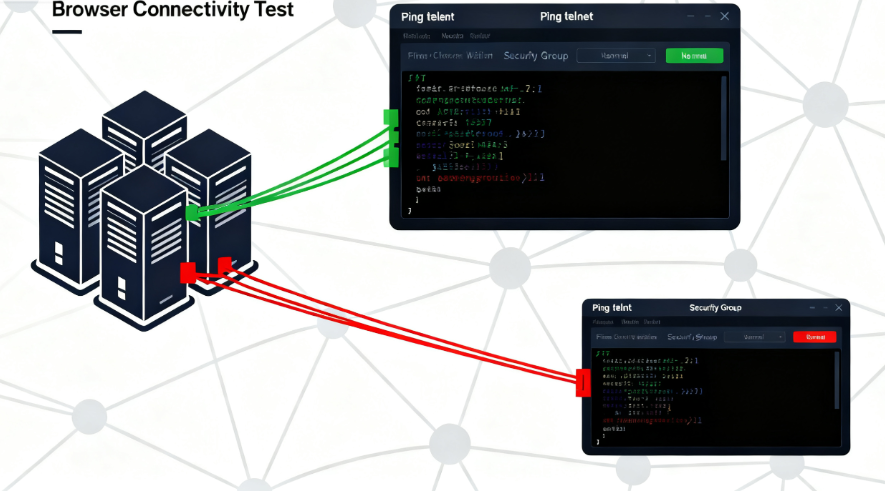
2.1 Testing back-end server connectivity
From a proxy server usingping (computing)respond in singingtelnetcommand to test network connectivity to the back-end server. Verify that firewall rules allow communication between the proxy server and the back-end server, check security groups and networkACL ConfigurationThe
2.2 Checking DNS resolution configuration
Verify that the proxy server on theDNSWhether the resolution is normal or not. Use the nslookup or dig command to check if the backend server domain name can be resolved correctly. Check the DNS server configuration in the /etc/resolv.conf file to ensure that the DNS settings are correct.
Step 3: Analyze proxy configuration errors
Misconfiguration of the proxy can directly lead to a 502 error, so you need to double-check the configuration file.
3.1 Checking Upstream Server Configuration
In the Nginx configuration, check that the server address and port in the upstream block are correct. Verify that the backend server address has not changed and that the service is running on the expected port.
3.2 Authentication timeout settings
Check the timeout settings for proxy_connect_timeout, proxy_send_timeout and proxy_read_timeout. Increase the timeout values appropriately, especially when dealing with large amounts of data or slow queries.
Step 4: Check the back-end server status
The state of the back-end server directly affects the response of the proxy server and needs to be thoroughly checked.
4.1 Verify back-end service availability
Access the back-end server directly to confirm that the service is running normally. Check the status of the Web service on the back-end server to confirm that the application is not crashing or abnormal.
4.2 Checking back-end server load
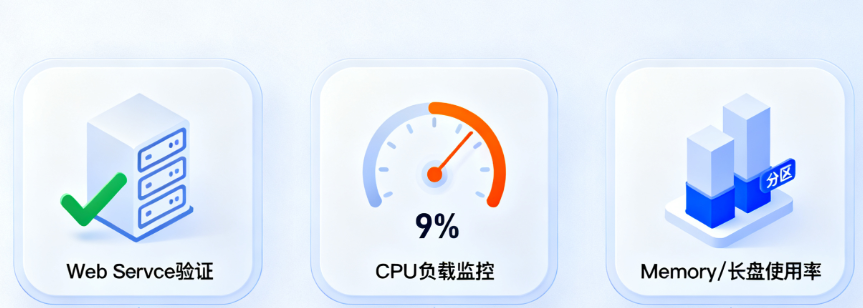
Monitor the CPU, memory, and disk usage of the back-end server. High load may cause the server to fail to respond to proxy server requests in a timely manner. Check system logs for clues to possible performance issues.
Step 5: In-depth log analysis
Log analysis is a critical step in locating the root cause of a 502 Proxy Error.
5.1 Checking Proxy Server Logs
Look at the Nginx or HAProxy error logs, usually at /var/log/nginx/error.log or /var/log/haproxy.log. look for error messages related to the 502 error, which will provide the specific cause of the failure.
5.2 Analyzing back-end server logs
Check both the application logs and web server logs of the back-end server. Compare the log timestamps of the proxy server and the back-end server to find out the exact point at which the request failed.
By systematically troubleshooting the above five steps, most 502 Proxy Error can find a solution. It is recommended to perform each step in order, eliminating all possibilities from simple to complex, and eventually restoring normal access to your website.

Link to this article:https://www.361sale.com/en/79702The article is copyrighted and must be reproduced with attribution.














![Emoji[wozuimei]-Photonflux.com | Professional WordPress repair service, worldwide, rapid response](https://www.361sale.com/wp-content/themes/zibll/img/smilies/wozuimei.gif)

![Emoticon[baoquan] - Photon Wave Network | Professional WordPress Repair Services, Worldwide Coverage, Rapid Response](https://www.361sale.com/wp-content/themes/zibll/img/smilies/baoquan.gif)


 简体中文
简体中文  English
  日本語
日本語  Français
  Español


No comments