





introductory
enoughWordPressNewbies, especially those who are just starting out in website management, may encounter a dilemma. On the one hand, veteran developers will all advise us to turn off theme and plugin editing, which means setting the disallow_file_editOn the other hand, when we want to quickly modify a small problem on the website, the familiar "editor" in the background suddenly disappears. On the other hand, when we want to quickly modify a small problem of the website, the familiar "editor" in the background suddenly disappeared, which is very inconvenient, as if a set of "shackles".
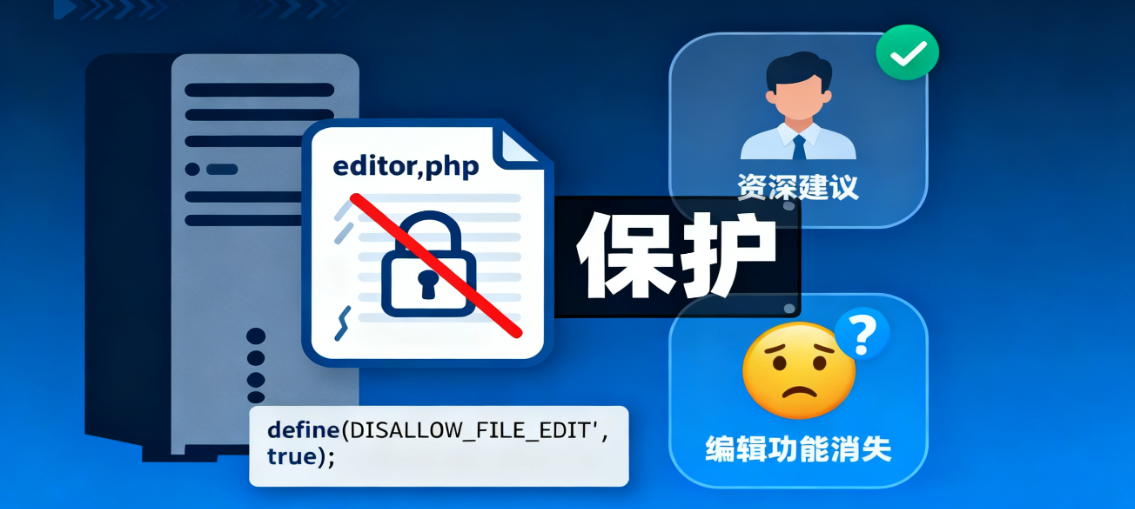
In this post, we'll talk in depth about this seemingly contradictory topic. You'll find.disallow_file_edit Not to limit you, but to protect you. More importantly, together we'll explore a safer way to get rid of your reliance on a background file editor.
Part I: Understanding DISALLOW_FILE_EDIT - What is it really?
Before we dive in, let's briefly review the core of this feature.
1.1 A simple safety switch
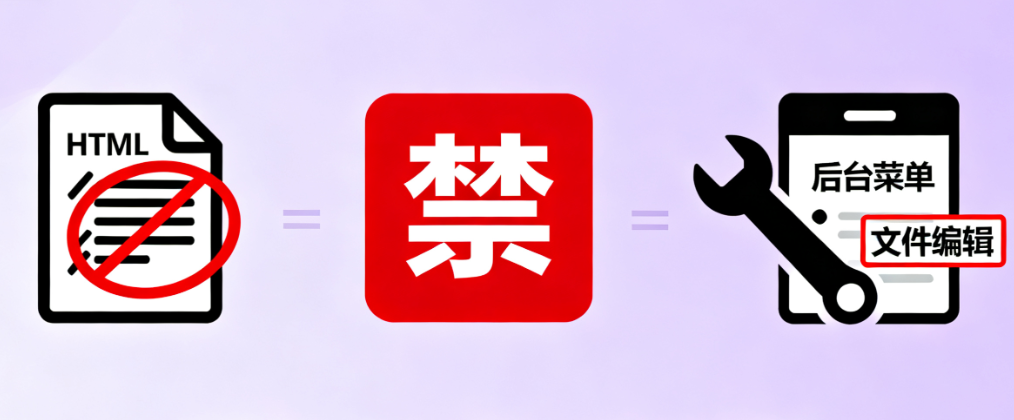
disallow_file_edit is a setting within the WordPress system. It's a setting that you can set when you add a page to your site's wp-config.php This core configuration file, add a specific line of code, WordPress backend appearance menu under the "Theme Editor" and plugin menu under the "Plugin Editor" will immediately disappear.
1.2 Its main mission: prevention and isolation
It exists for two main and very practical purposes:
- Protect against internal misuse: For users or team members who are not familiar with the code, a slight mistake in the background editor, such as deleting a semicolon, can cause the entire frontend of the site to turn into a "white screen", also known as the famous "White Screen of Death". Turning off this feature eliminates this type of accident from the root.
- Increase the difficulty for intruders: Assuming that someone has somehow gained login access to the backend of your website, they won't be able to modify core files and plant malicious code directly through these editors. This adds an extra layer of cushion to your website's security.
Part II: Umbrella or Shackle? --Two perspectives on it
This is at the heart of the controversy. The same feature, in different scenarios, gives a very different feel.
2.1 Why is it seen as an "umbrella"?
From the point of view of site stability and securitydisallow_file_edit Undoubtedly a reliable umbrella.

- Maintain site stability: It ensures that the code of the online site (i.e., the site that the user is visiting) is not altered at will. All changes must go through a more controlled process, such as being modified on a local computer, tested for accuracy and then uploaded to the server.
- Follow best practices: In a professional website management and development process, modifying code directly on the production server is a not recommended practice. This setting forces you to develop a better habit.
2.2 Why does it also feel like "shackles"?
This feeling usually comes from the inconvenience of the development or debugging process.
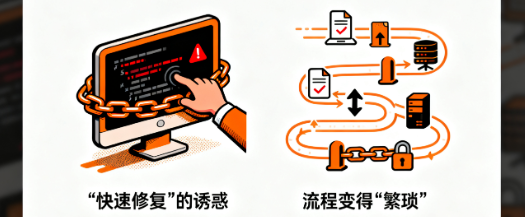
- The lure of the "quick fix": When a small problem occurs on a website, the most immediate thought is "go into the background and change the code, it will be fine". When you close the editor, this most "short and quick" path is cut off.
- The process becomes "cumbersome": Now you need to modify the file on your local computer first, and then upload it to overwrite it with FTP or file management tool, the steps become more and feel less efficient.
2.3 Redefinition: it's not a shackle, it's a signpost
In fact, this "inconvenience" is a kind reminder. It's telling you, "Hey, this method you're using is risky, there's a safer, more professional way to go." It's guiding you away from that shortcut, which is full of pitfalls, and toward the path of professional commissioning.
Part III: Say goodbye to the background editor - embrace a professional debugging partner: WP_DEBUG
So, what's the "easy way out"? The answer is to utilize the debugging features that come with WordPress instead of relying on that dangerous backend editor.
3.1 What is WP_DEBUG?
WP_DEBUG is another core WordPress configuration option, also found in the wp-config.php file. You can think of it as a "trouble light on the dashboard of a car".
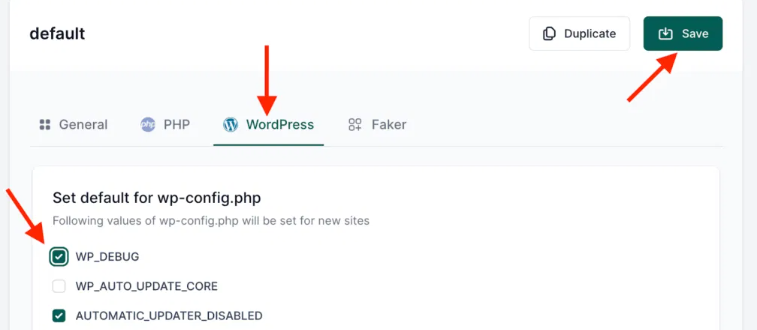
- When it closes, your site, even if it has a code error, may just show a blurry white screen and you don't know what the problem is.
- When it's on, it actively catches all kinds of errors, warnings, and notifications in your code and displays them clearly, telling you which file and line the problem is in.
3.2 How do the two work together?
disallow_file_edit respond in singing WP_DEBUG Not opposites, but a golden partnership with a division of labor.
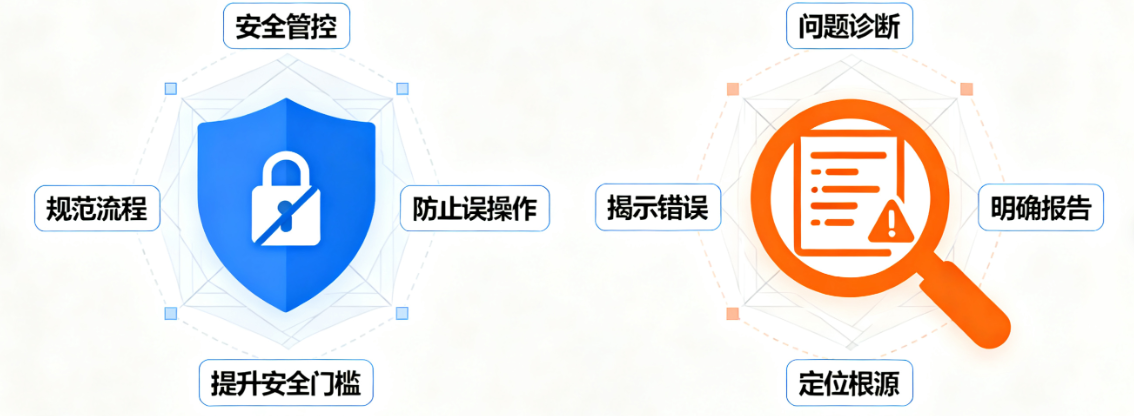
disallow_file_edits core responsibility is to enforce security controls. It enforces the standardization of the code change process by disabling the built-in file editor in the production environment. This effectively prevents the risk of misuse due to direct online changes and raises the security threshold for unauthorized access. At its core, it establishes the security boundary of "no online modification".TheWP_DEBUGs core responsibility is to provide problem diagnostics. It runs in the development environment and reveals exactly what errors, warnings and notifications are in the code. It translates hidden logical problems into clear reports that guide developers to quickly locate the root cause. At its core, it answers the question "What is the problem and why?""
One for "safety" and one for "diagnostics". Together, they form an environment that is both safe and efficient for troubleshooting.
Part IV: Building Your Security Commissioning Workflow
4.1 Principle of environmental separation
This is the core concept. Please categorize your work environment into two categories:
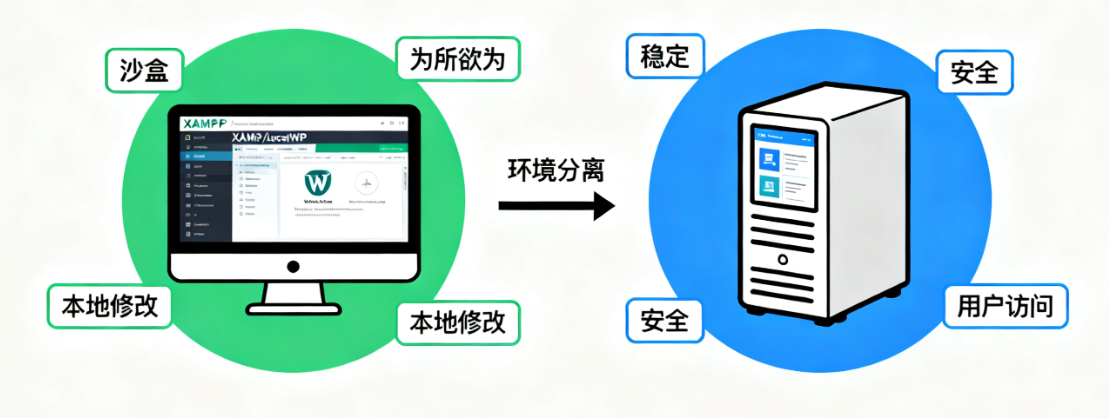
- Local development environment: On your own computer, utilize theXAMPP,LocalWPand other software to build a WordPress environment exactly like the online server.
- Online production environment: That is, the website that users actually visit. It should be stable and secure here.
4.2 Correct configuration in different environments
- in your local development environment:You can keep
disallow_file_editis off (i.e., not set or set to false), making it easy for you to use the editor at any time.Must be turned onWP_DEBUG, let it help you find errors in real time.
// In the wp-config.php file
define( 'WP_DEBUG', true );- In your online production environment: must be turned on
disallow_file_edit, locking the file editing.Must be closedWP_DEBUG, avoid exposing detailed error messages to site visitors (which is itself a security risk).
// in the wp-config.php file
define( 'DISALLOW_FILE_EDIT', true );
define( 'WP_DEBUG', false );
4.3 More advanced online debugging techniques
Sometimes online sites have problems with a white screen, but what if you can't see the error message? There is a way to have the best of both worlds:Logging errors to a log fileThe
You can go online to the website of wp-config.php This is how it is set up in the
define( 'DISALLOW_FILE_EDIT', true );
define( 'WP_DEBUG', true );
define( 'WP_DEBUG_DISPLAY', false ); // Disable display of errors on page
define( 'WP_DEBUG_LOG', true ); // Log errors to /wp-content/debug.log file
This way, when an error occurs, the error details are quietly written to the wp-content/debug.log This log file is not visible to the front-end users of the site, while you can download this log file to troubleshoot the problem. After troubleshooting, remember to move the WP_DEBUG put back falseThe
Part V: Beyond the Basics - More Powerful Debugging Tools
apart from WP_DEBUG, the WordPress world has many more powerful tools that can help you, and they are much more powerful than the backend editor.
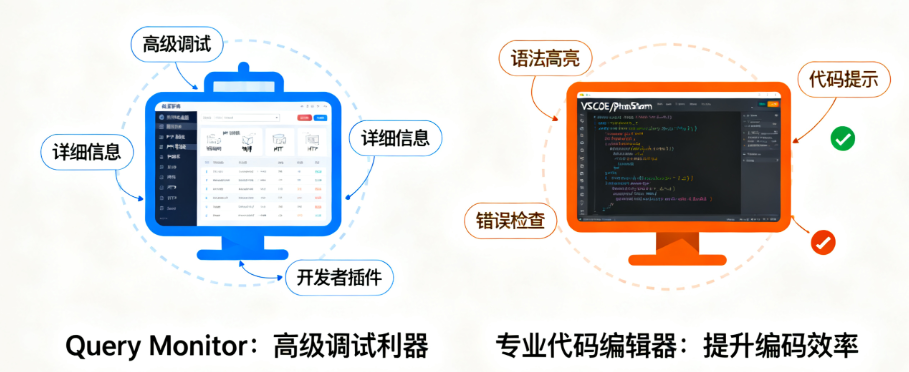
- Query Monitor: This is a very popular developer plugin. It displays all database queries generated by the page,PHP Error, hooks, HTTP requests, etc. The information is extremely detailed and is a great tool for advanced debugging.
- Professional code editor: use a tool likeVS Code, professional editors like PhpStorm write code in your local environment. They have features like syntax highlighting, code hints, error checking, etc., which will allow you to avoid a lot of mistakes right from writing the code.
reach a verdict
Back to our original question:disallow_file_editIs it an umbrella or a shackle?
The answer lies in your choice. If you stubbornly rely on that risky backend editor, it's a shackle for you. But if you understand what it was designed to do and are willing to adopt a more specialized WP_DEBUG With local development workflow, it is a solid umbrella for your website stability and security.
Embrace this change. It's not just about turning off a feature, it's an important step in your journey from being a WordPress enthusiast to a more professional and reliable webmaster. Let go of that dangerous backend editor, and you'll find that the world you can control and understand has instead become much wider and more solid.

Link to this article:https://www.361sale.com/en/79905The article is copyrighted and must be reproduced with attribution.













![Emoji[wozuimei]-Photonflux.com | Professional WordPress repair service, worldwide, rapid response](https://www.361sale.com/wp-content/themes/zibll/img/smilies/wozuimei.gif)

![Emoticon[baoquan] - Photon Wave Network | Professional WordPress Repair Services, Worldwide Coverage, Rapid Response](https://www.361sale.com/wp-content/themes/zibll/img/smilies/baoquan.gif)


 简体中文
简体中文  English
  日本語
日本語  Français
  Español


No comments