





introductory
For aWordPressThere is nothing better for a webmaster than to be suddenly confronted with a "502 Bad Gateway"Errors are more anxiety-provoking. Your website suddenly becomes inaccessible, leaving only a cold error message. If you're using a shared or managed web host like Bluehost or SiteGround, you may feel overwhelmed.
Don't worry, although 502 errors are common, most of the cases in this kind of hosting environment can be solved quickly with some simple methods. This article will take you deeper and deeper to understand the special causes of 502 error in cPanel/Plesk panel environment, and teach you step by step to restore your website with "foolproof" operation.
Part I: Understanding the Nature of 502 Errors and the Special Causes of Web Hosting
First, we need to understand what a 502 error means. Simply put, it means that your web server (which acts as a gateway) is trying to get a 502 error from an upstream server (such as one that handles thePHPprogram) received an invalid response when fetching the response. There are several common and specific reasons behind this in a shared hosting environment.
1.1 Resource Usage Exceedance Triggers Host Limits
This is the most common reason on shared hosting. Your hosting plan has a clear limit on the number of CPU, memory or processes. When your website traffic spikes, or a plugin or theme runs abnormally, it may exhaust these resources instantly. The hosting provider's system automatically restricts your account, causing PHP processes to fail to start, resulting in a 502 error.
1.2 .htaccess file errors
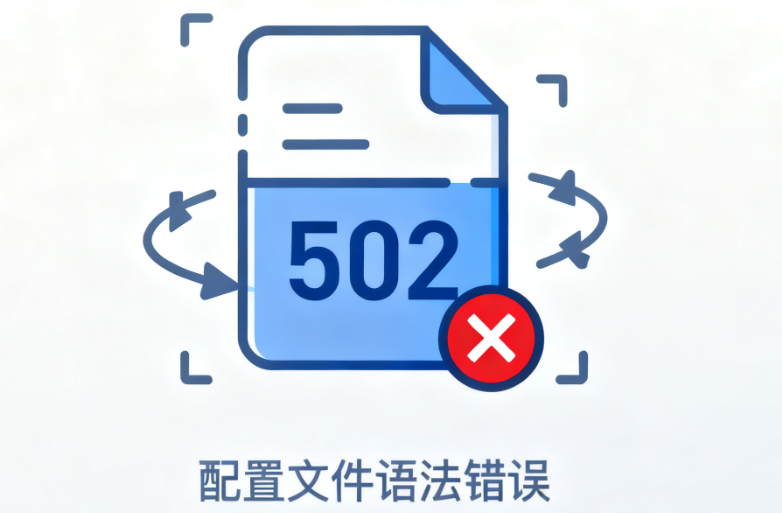
.htaccessis a powerful configuration file for controlling access rules for web directories. If you add an incorrect RewriteRule or other directive to the file, it can directly cause the server software (such as theApache) configuration error that interrupts requests for PHP.
1.3 PHP Version Compatibility and Process Exceptions
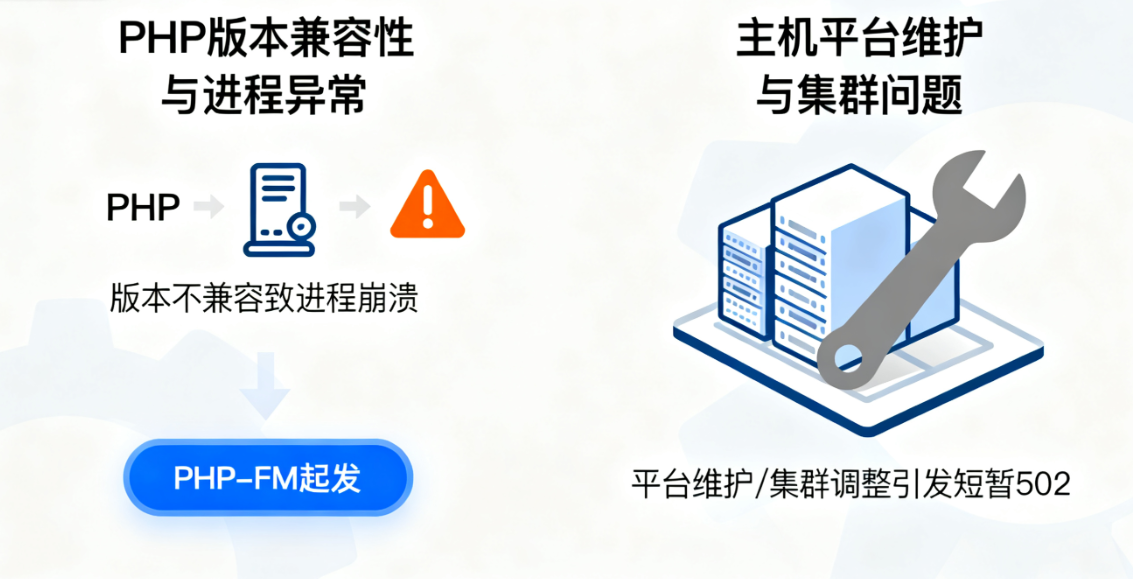
Your hosting environment may be running multiple versions of PHP. sometimes, after switching PHP versions, the new version is incompatible with one of your themes or plugins, causing the PHP process to crash. Another situation is that the PHP-FPM process manager itself is abnormal or needs to be restarted.
1.4 Mainframe maintenance and clustering issues
Although infrequent, hosting providers may perform platform maintenance, hardware upgrades, or cloud cluster load balancing adjustments. These background operations sometimes briefly affect some users, triggering a 502 error.
Part II: Quick Fixes in Action: Foolproof Operations Without Commands
When faced with a 502 error, we should follow the principle of going from the simple to the complex. Please try the following steps in order.
2.1 The first step: clear the browser cache and a simple test
Sometimes the problem lies in local caching or brief network fluctuations. Use your browser's "No Trace Window" to access your site, or try using your cell phone's mobile data. If it displays normally, the problem is with your local network or cache.
2.2 Step 2: Restart PHP and Check PHP Version
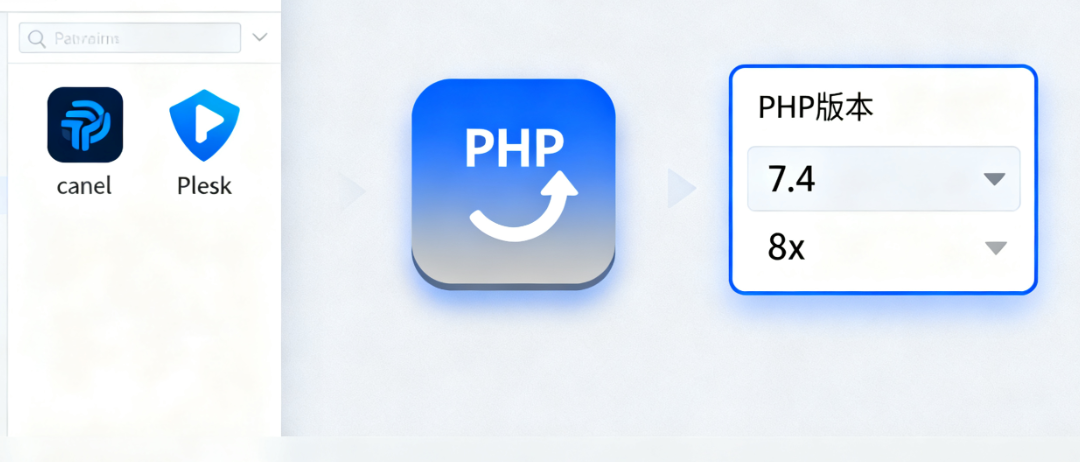
This is one of the most effective ways to resolve web hosting 502 errors.
- Restart PHP: Log in to your hosting control panel (cPanel or Plesk). In thecPanelIn the "Software" or "Advanced" section, you can find the "Select PHP version" or "PHP configuration" button. "There is usually a "Restart PHP" button. In Plesk, go to "Websites and Domains", find your domain name, click on "PHP Settings" and look for the restart option as well.
- Check the PHP version: On the same page, check the version of PHP you are using. Make sure it's compatible with the WordPress, themes and plugins you have installed. If you've just recently upgraded PHP, try temporarily switching back to the last stable version (e.g., cutting back from PHP 8.x to PHP 7.4) and see if the problem is resolved.
2.3 Step 3: Troubleshooting Faulty Plugins and Themes
Since we can't access the backend, we need to disable them by renaming the folder.
- Connect to your web site's root directory via FTP or the host's provided "file manager" (usually the
public_html). - go into
wp-contentFolder. - rename
pluginsfile (paper), for example, readplugins.deactivated. This action disables all plug-ins at once. - Now refresh your website frontend. If access to the site is restored, it means that the problem is with one of the plugins. Next, change the folder name back to
pluginsThen enter one by onepluginsfolder, temporarily rename each plugin's subfolder (e.g.plugin-achange intoplugin-a.deactivate), refreshing the site for each operation until you find the plugin that's causing the problem. - If disabling all plugins doesn't work, go back to
wp-contentFolder.renamethemesfile (paper), for example, readthemes.deactivated. This will force WordPress to switch back to the default theme. If the site comes back, it means that something is wrong with your theme files.
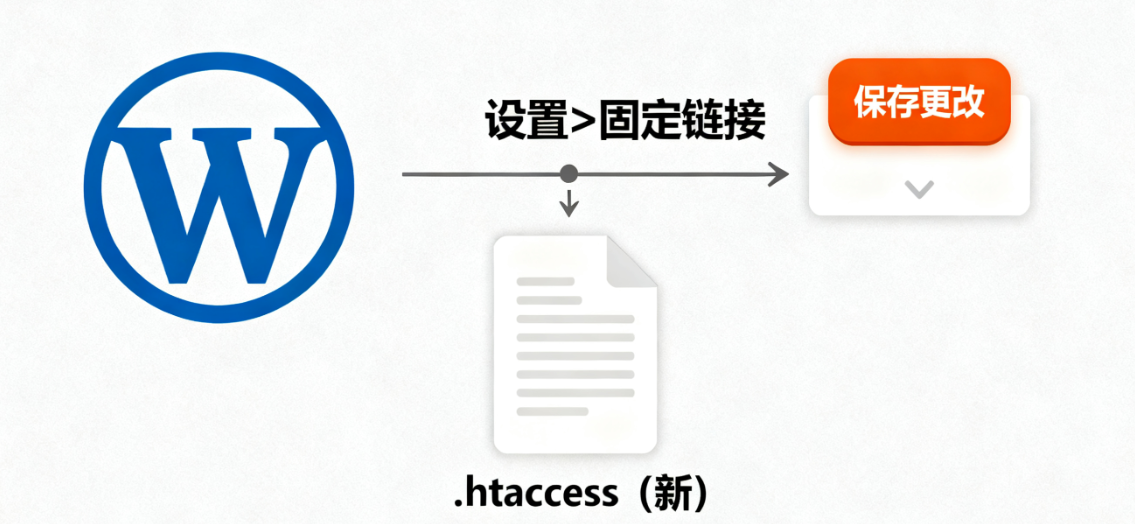
2.4 Step 4: Repair or reset the .htaccess file
A damaged.htaccessFiles are a common culprit for 502 errors.
- Using the file manager, find the root directory of the website under the
.htaccessDocumentation. - Rename it to
.htaccess.oldThe - Refresh your site. If the site comes back up, it means the problem was with the old rules.
- To generate a new, clean
.htaccessTo save the file, simply go to the "Settings > Fixed Links" page in the WordPress backend and click "Save Changes".
Part III: Making good use of tools: plug-in troubleshooting method and hosting provider support
When the above methods do not work well, we have more advanced tools and methods.
3.1 Troubleshooting with the "Health Check" plug-in
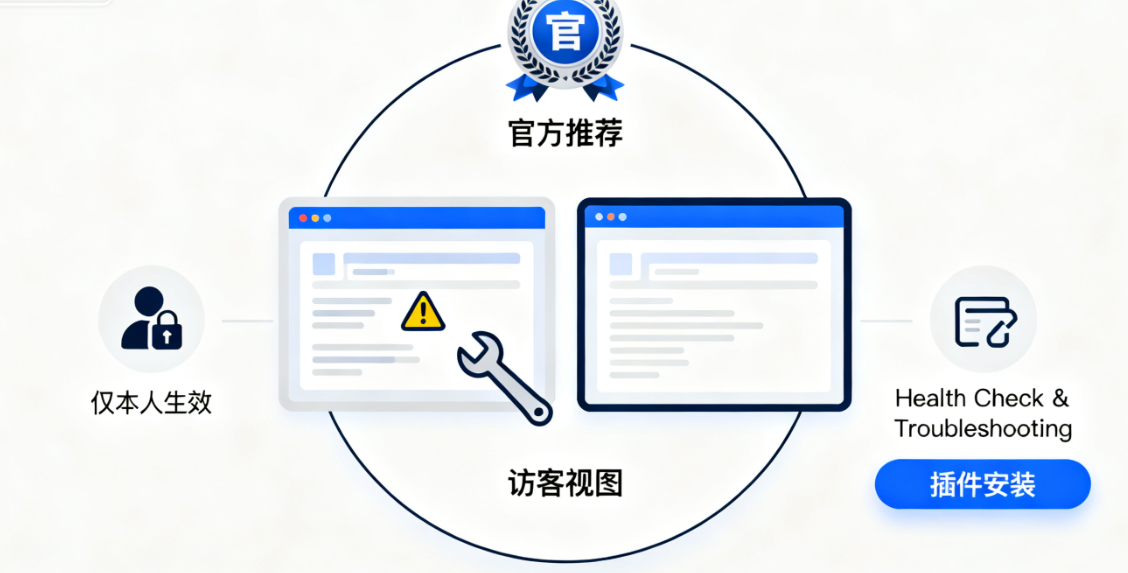
"Health Check & Troubleshooting"The plugin is an officially recommended diagnostic tool. It is powerful in that it enables a "troubleshooting mode" on your site that only works for you, and visitors will still see your original site.
In this mode, you can safely disable all plugins and switch the default theme without affecting the user experience. This provides you with a powerful diagnostic portal to the backend when you don't have access to it. It is recommended to install and familiarize yourself with this plugin ahead of time when your site is normal.
3.2 Contact your hosting provider for technical support
If all the options tried on your own have failed, it's time to contact your hosting provider. Before submitting a support work order, please have the following information ready, which can greatly increase the efficiency of the resolution:
- Your primary domain name.
- The exact time when the problem started to appear.
- All the troubleshooting steps you've tried(e.g. PHP has been restarted, plugins have been disabled, etc.).
- Specific error logs(if available). In the Metrics area of cPanel or in the Advanced Logs section, look for Error Logs, download the most recent file, and look for the PHP or Apache error logs corresponding to the point in time when the problem occurred.
reach a verdict
In cPanel/Plesk web hosting environments, WordPress 502 errors, while annoying, are usually not insurmountable. The root causes are mostly related to resource limitations, configuration files and PHP processes. By systematically performing a series of operations ranging from browser cache cleanup and PHP restart to plugin theme troubleshooting and .htaccess file repair, most problems can be quickly located and resolved.
Remember, stay patient and take it one step at a time. Each troubleshooting experience will give you a deeper understanding of the mechanics of WordPress and make you a more confident webmaster.

Link to this article:https://www.361sale.com/en/80160The article is copyrighted and must be reproduced with attribution.













![Emoji[wozuimei]-Photonflux.com | Professional WordPress repair service, worldwide, rapid response](https://www.361sale.com/wp-content/themes/zibll/img/smilies/wozuimei.gif)

![Emoticon[baoquan] - Photon Wave Network | Professional WordPress Repair Services, Worldwide Coverage, Rapid Response](https://www.361sale.com/wp-content/themes/zibll/img/smilies/baoquan.gif)


 简体中文
简体中文  English
  日本語
日本語  Français
  Español


No comments