




Images are a critical factor affecting both user experience and SEO performance. However, numerous websites encounter issues such as upload failures, slow loading times, and blurry images. The root causes often lie in unclear image size restrictions, improper dimension selection, and flawed compression strategies. This article will focus on... WordPress actual upload size limitSystematically explains different usage scenariosOptimal Image Size Standardsas well asTo what size should images be compressed?Balancing clarity and loading speed, it helps webmasters significantly enhance website performance and search engine rankings while maintaining visual appeal.
![Image [1] - How Large Can WordPress Images Be? The Truth Behind Upload Failures and Website Slowdowns Explained](https://www.361sale.com/wp-content/uploads/2025/12/20251215091907107-image.png)
1. What is the image upload size limit in WordPress?
1. WordPress itself does not impose a fixed maximum image size limit.
Many new webmasters mistakenly believe that WordPress imposes a uniform limit on image uploads, such as 2MB or 5MB.
In fact,WordPress itself does not enforce a maximum upload size for images.
The "maximum file upload size" displayed in the WordPress backend depends on the following factors:
- Server Environment (Apache / Nginx)
- PHP Configuration (
upload_max_filesize,post_max_size) - Hosting Provider Security Policy
Therefore, upload limits vary significantly across different websites, with common ranges including:
- 2MB (some shared hosting plans)
- 10MB / 20MB
- 50MB / 128MB (VPS or cloud server)
2. How do I check the current maximum upload limit for this website?
In the media upload interface of the WordPress admin panel, you'll typically see a prompt such as: "Maximum upload file size: 2MB."
This is the maximum file size permitted by the current server environment.
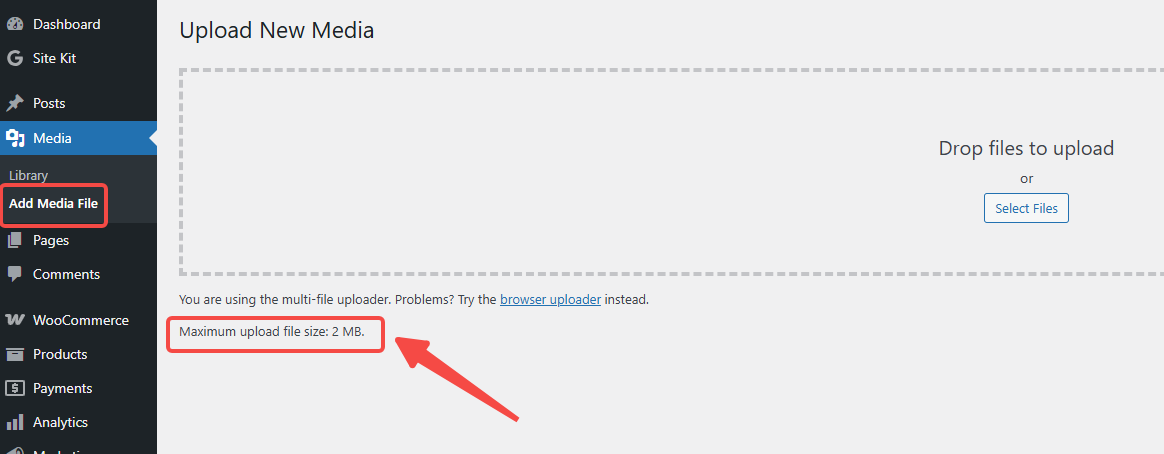
If you encounter the following error when uploading images:
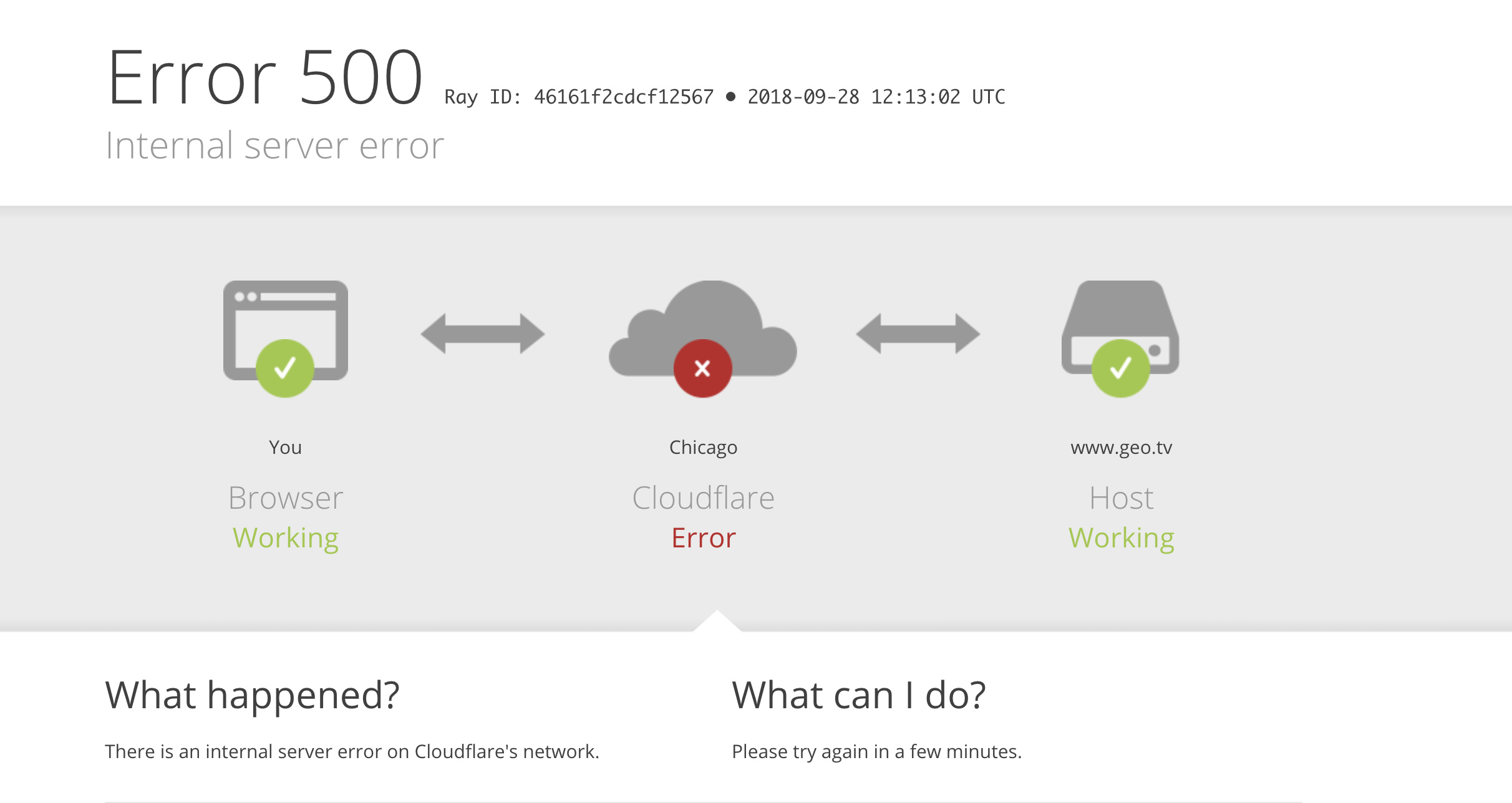
- "File exceeds maximum upload limit"
- "HTTP Error"
General Notes:The image size has exceeded the server's permitted limit.The
3. What practical consequences can arise from excessively low upload limits?
Upload limits set too low will directly impact daily content creation, such as:
- Unable to upload original camera images or high-resolution screenshots
- Long images and detailed screenshots in tutorial articles frequently fail to upload.
- Forced to use low-quality, heavily compressed images
- Repeatedly trying different versions of images is a huge waste of time.
Something to keep in mind:
II. How to Increase the Maximum File Upload Size in WordPress?
1. Adjustments at the server and PHP levels (fundamental solution)
Increasing upload limits primarily involves modifying PHP configuration parameters, including:
| parameter name | Control Content | Typical effect | Common Misconceptions |
|---|---|---|---|
upload_max_filesize | Single file upload | Limit the size of an image | Changing it alone will resolve the upload issue. |
post_max_size | The entire POST request | Determining whether a request is accepted by PHP | Often overlooked |
memory_limit | PHP Available Memory | Impact on image processing and thumbnail generation | Thought it had nothing to do with uploading |
The specific method depends on your host environment. Common approaches include:
- modifications
php.ini - pass (a bill or inspection etc)Mainframe Control Panel(such as cPanel, Pagoda)
- Contact your hosting provider's customer service for assistance with adjustments.
![Image [3] - How Large Can WordPress Images Be? The Truth Behind Upload Failures and Website Slowdowns Explained](https://www.361sale.com/wp-content/uploads/2025/12/20251215102848844-image.png)
post_max_size necessarily greater than or equal to upload_max_filesizeOtherwise, the modification will be invalid.2. The Role and Limitations of Plugins
Some plugins on the market can help you:
- Display the maximum upload limit currently permitted by the server.
- Unlock the WordPress admin panel to the maximum value allowed by the server
But one thing must be made clear:
3. Upload restrictions are not the core issue in image optimization.
Increasing upload limits only solvesCan I upload it?The real issue affecting website experience is:
- Page loading speed
- Mobile Access Experience
- Search Engine Performance Metrics (LCP, CLS)
- Server Storage Space Usage
Image OptimizationThe core issue has never been whether something can be passed on, but whether it is worth passing on.
III. What is the optimal image size for WordPress?
Recommended dimensions for images in article body text
Select image dimensions based on the content area width.
The width of images accompanying articles should beActual width of the main content areaFocus on practicality rather than blindly pursuing ultra-high resolution.
General recommendations are as follows:
- Recommended width for body images: 1000–1200px
- High-definition requirements (tutorial screenshots, detailed images): 1400–1600px
- It is not recommended to upload images wider than 2000px in the main content area.
Even though WordPress automatically generates multiple responsive versions,Uploading overly large original images will still:
- Occupy more server space
- Increase the burden of media library management
- Increase backup and migration costs
Do not rely on front-end scaling to solve problems.
Simply "scaling down" a 4000px image using CSS does not reduce its actual file size.
The pixel dimensions of the source image file are the key factor determining performance.
2. Recommended Dimensions for Homepage Header and Cover Images
Common Safety Size Recommendations
- Full-width Banner / Hero Image: 1920px wide
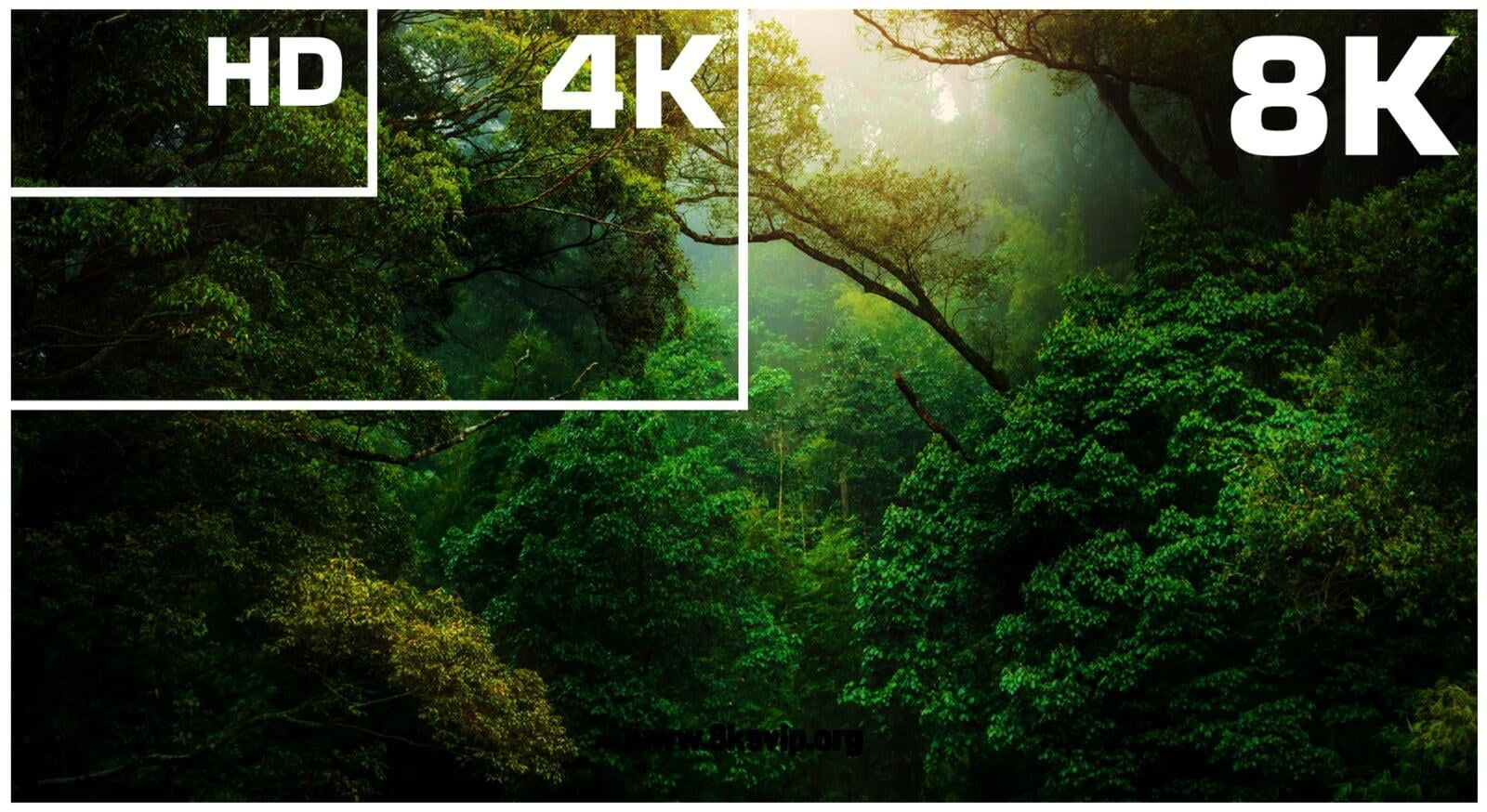
- High-resolution screen (4K) adaptation: 2560px width (use with caution)
Beyond this range:
- The improvement in clarity is very limited.
- The file size has increased significantly.
3. Recommended Dimensions for List Images and Thumbnails
Plan based on actual usage scenarios
- Blog List Image: 600–900px wide
- Card-style thumbnails: 300–450px
- Small decorative graphics / Icons: Produce at actual display size
At the same time, it is recommended that:
- Check whether the topic generates a large amount ofImage sizes that are not actually needed
- Disable unnecessary thumbnail sizes to prevent media library bloat.
4. Summary of Optimal Image Sizes for WordPress
| Usage Scenarios | Recommended Width | Notes |
|---|---|---|
| Main Content Image | 1000–1200px | Applicable to the vast majority of topics |
| High-definition tutorial images | 1400–1600px | Detail Showcase |
| Maximum number of images in the main text | ≤2000px | Not recommended to exceed |
| Full-width header image / Banner | 1920px | Standard safety dimensions |
| 4K Screen Adaptation | 2560px | Use caution |
| Blog List Image | 600–900px | List and Category Pages |
| Thumbnail / Card Image | 300–450px | Small Module Showcase |
4. What is the appropriate size for compressed WordPress images?
1. Don't focus solely on the "compression ratio"; instead, pay attention to the "final volume."
Different images can vary greatly in content, and the same compression ratio may result in vastly different final file sizes.
A more scientific approach is:Set target volume ranges for different usage scenarios.
![Image [4] - How Large Can WordPress Images Be? The Truth Behind Upload Failures and Slower Websites Explained](https://www.361sale.com/wp-content/uploads/2025/12/20251215103311892-image.png)
2. Recommended Image Size Guidelines
Article Body Image
- Ideal range: 100KB–300KB
- Tutorial images with more details: 300KB–500KB
- Over 500KB: We recommend rechecking the size or format.
Homepage header image and large cover image
- Recommended range: 200KB–600KB
- Avoid exceeding 1MB whenever possible.
Icons, thumbnails, and simple graphics
- Target size: Under 50KB
- usable SVG In such scenarios, prioritize the use of vector solutions.
3. Common Image Formats and Compression Recommendations
JPEG (JPG)
- Suitable for photo-type images
- Recommended Quality Parameters:70–85
- Offers the best compatibility, but is typically not as compact as newer formats.
PNG
- Suitable for images requiring transparent backgrounds or lossless detail
- Due to the large file size, use with caution.
| specification | Scenario | vantage | caveat |
|---|---|---|---|
| JPEG | Photos, accompanying images | Best compatibility | Slightly larger in size |
| WebP | Mainstream website images | Smaller size | Compatibility with older browsers is required. |
| PNG | Transparent background | Lossless quality | The file is large. |
| SVG | Icons, Logos | Infinite Zoom | Not suitable for photos |
WebP (Highly Recommended)
- More modern image formats
- Smaller file size with equivalent image quality (when comparing WebP Compared to JPEG lossy images, WebP images are 25-34% smaller.
![Image [5] - How Large Can WordPress Images Really Be? The Truth Behind Upload Failures and Sluggish Websites Explained](https://www.361sale.com/wp-content/uploads/2025/12/20251215103421191-image.png)
- Supports transparent backgrounds
- Perfect for use as WordPress Primary Image Format
V. Key Points for Checking Optimized Images in WordPress
1. Check the actual dimensions of images loaded on the front end
WordPress loads different image sizes based on the device, but it doesn't always match perfectly.
We recommend using browser developer tools:
- View the actual dimensions of loaded images
- Confirm whether there is a situation where "display is minimal, but loading is significant."
Specific steps:
- Press "F12 (Windows/Linux)" or "Cmd+Opt+I (Mac)" in the front end.
- Click the pointer icon (or press the shortcut key Ctrl+Shift+C/Cmd+Opt+C), then move your mouse over an image on the webpage.
![Image [6] - How Large Can WordPress Images Really Be? The Truth Behind Upload Failures and Sluggish Websites Explained](https://www.361sale.com/wp-content/uploads/2025/12/20251215104255789-image.png)
- After clicking the image, the corresponding image tag (typically <img> Tag)
- View image properties
- -Properties panel: The CSS properties and layout information for the element appear on the right side of the Elements panel. Here you can find naturalWidth and naturalHeight, which represent the actual width and height of the image.
- -Styles panel: Switching to the Styles panel allows you to view additional style-related information, including the rendered dimensions of images.
![Image [7] - How Large Can WordPress Images Be? The Truth Behind Upload Failures and Website Slowdowns Explained](https://www.361sale.com/wp-content/uploads/2025/12/20251215105259550-image.png)
2. Controlling Media Library Expansion Issues
For each image uploaded, WordPress may generate multiple size variations.
If left unchecked for an extended period:
- The media library will rapidly expand.
- Server space consumption is severe.
- Significant increase in backup and migration costs
Properly planning image dimensions is an essential consideration for long-term website operation.
3. Image optimization is a long-term strategy, not a one-time operation.
- Change Theme → Re-check Image Dimensions
- Page structure changes → Adjust image strategy
- New equipment and standards emerge → Update and optimize solutions
Image optimization is an ongoing iterative process, not a one-time fix.

Link to this article:https://www.361sale.com/en/82841The article is copyrighted and must be reproduced with attribution.















![Emoji[wozuimei]-Photonflux.com | Professional WordPress repair service, worldwide, rapid response](https://www.361sale.com/wp-content/themes/zibll/img/smilies/wozuimei.gif)

![Emoticon[baoquan] - Photon Wave Network | Professional WordPress Repair Services, Worldwide Coverage, Rapid Response](https://www.361sale.com/wp-content/themes/zibll/img/smilies/baoquan.gif)


 简体中文
简体中文  English
  日本語
日本語  Français
  Español


No comments