




GenerateBlocks is an extension plugin built on top of the WordPress Block Editor. It does not replace the editor but enhances the native block editing experience. Understanding the overall structure of the Block Editor helps you use it more efficiently. GenerateBlocksThis also prevents operational confusion during the editing process. Below, we will systematically outline the composition of the WordPress block editor and how GenerateBlocks enhances it from a holistic perspective.

WordPress Block Editor Overview
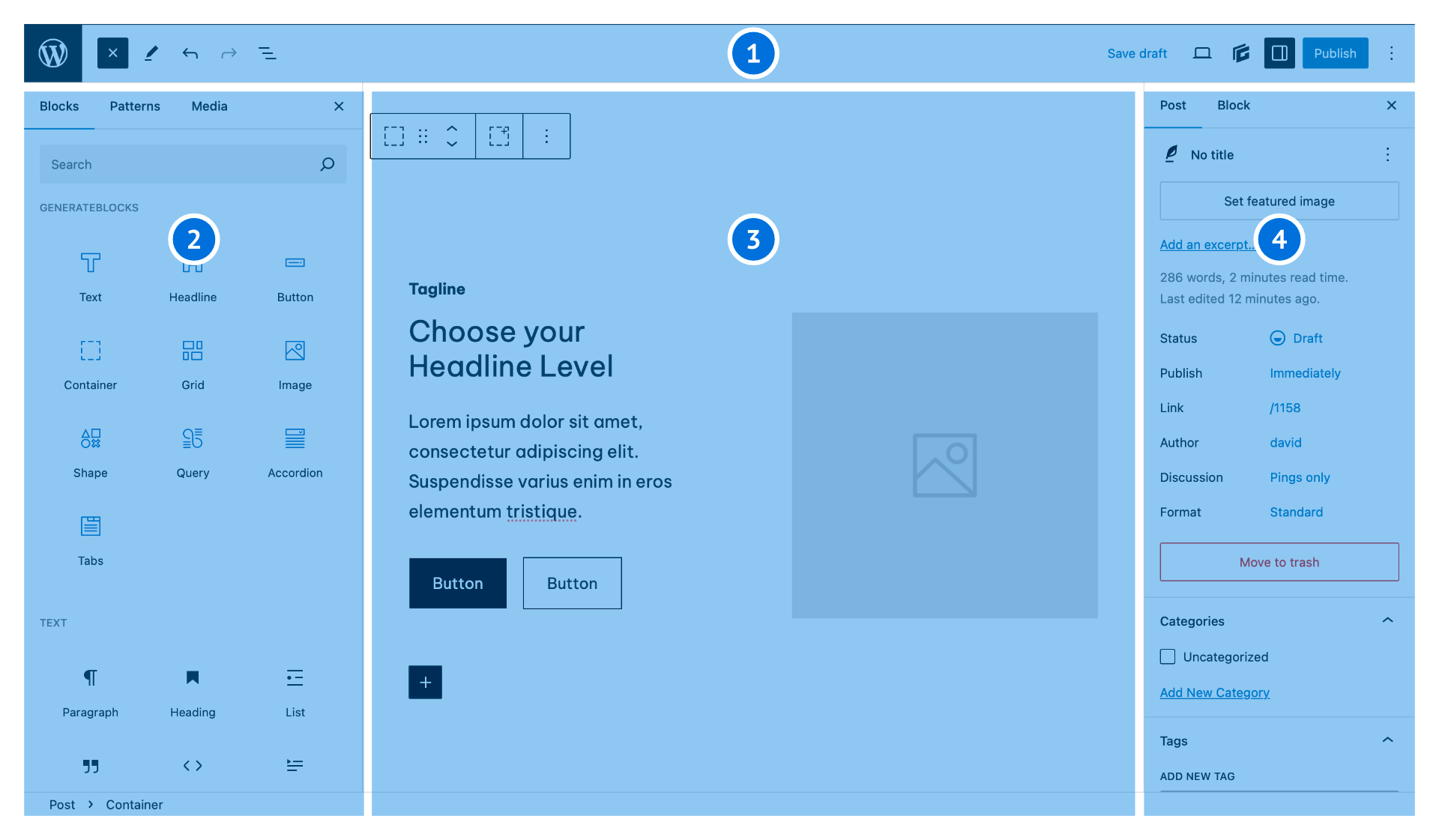
WordPress Block EditorComposed of multiple functional areas working in concert, each zone handles distinct editing responsibilities. The system can be divided into four core areas, corresponding to content creation, structural management, and configuration control.
The four main areas of the editor
The block editor primarily consists of the following components:
- Top Toolbar
Used to manage article status, editor display mode, and global editing options. - Left sidebar area
Primarily used for inserting blocks, managing block structure, and viewing document hierarchy. - Central Editing Area
The workspace for actual content writing and formatting. - Right sidebar area
Centralized display of article settings and block settings, serving as the primary entry point for the GenerateBlocks feature.

These four areas work together to form a complete editing experience.
Core Functions of the Top Toolbar
The top toolbar serves as the control center of the editor, where nearly all global operations can be performed.
![Image[3] - WordPress Block Editor Complete Guide: Mastering GenerateBlocks Efficiently](https://www.361sale.com/wp-content/uploads/2025/12/20251213180019575-image.png)
Content Publishing and Preview
The top bar provides basic operations related to articles, including:
- Publish or update content
- Saving drafts
- Preview how the article appears on the front end
These features ensure you can safely manage content status at different stages.
Responsive View Switching
WordPress includes built-in device support.viewSwitching functionality allows you to simulate display effects for desktop, tablet, and mobile devices.
When you switch between device views, GenerateBlocks automatically synchronizes responsive settings in the Style Builder, ensuring you see the corresponding style state across different devices. This proves extremely useful when fine-tuning layouts.
Panel Display Control
The top bar also includes multiple panel toggle buttons to control the display status of the left and right sidebars, such as:
- Block Insertor Panel
- Document Structure Overview
- GenerateBlocks Dedicated Panel
- Article and Block Settings Panel
You can flexibly enable or disable these panels based on your current editing needs.
Option Menu Description
The options menu in the top toolbar centrally manages the editor's advanced features, including:
- Set editing preferences for the current user
- View and Manage Shortcut Keys
- Open the plugin extension panel (such as the GenerateBlocks panel)
- Switch between visual editing and code view
- Adjust editor display settings
These options help customize the editing environment according to personal preferences.
Left Sidebar: Structure and Block Management Center
The left sidebar is a crucial area for managing blocks and document structure, particularly when building complex layouts with GenerateBlocks.
Block and Pattern Inserter
Through the left sidebar, you can quickly browse and insert:
- WordPress Native Blocks
- Blocks provided by the installed plugin
- GenerateBlocks Custom Blocks
- Saved patterns and block combinations
This makes content creation more efficient.
Document Overview and List View
The list view in the document overview displays all blocks on the current page in a hierarchical structure. This view is particularly useful in the following scenarios:
- View the overall structure of the page
- Understanding the relationship between blocksnestedRelationship
- Quickly locate and select any block
In the list view, you can also access additional options for each block:
- Rename Block
- Select multiple blocks in bulk
- Copy, move, or combine blocks
- Save the selected block as a pattern
![Image [4] - WordPress Block Editor Complete Guide: Master GenerateBlocks Efficiently](https://www.361sale.com/wp-content/uploads/2025/12/20251213172317174-editor-left-panel-block-insert-gb.png)
![Image [5] - WordPress Block Editor Complete Guide: Mastering GenerateBlocks Efficiently](https://www.361sale.com/wp-content/uploads/2025/12/20251213172314896-editor-left-panel-list-view.png)
For GenerateBlocks users, the list view is almost an indispensable tool when building complex layouts.
Editorial Area: The Core Space for Content Creation
The central editing area is where you actually write and format your content—this is where your articles, pages, or templates are completed.
Multiple Ways to Add Modules
In the editing area, blocks can be inserted in multiple ways:
- Use the module inserter on the left
- Click the "+" button within the editing area.
- Enter a slash followed by a keyword for quick search, e.g., enter /grid
This flexible insertion method significantly boosts content creation efficiency.
Characteristics of the Editing Experience
The editing area supports real-time previews and WYSIWYG editing. When paired with GenerateBlocks, you can complete complex layout designs without ever leaving the editor.
Right Sidebar: Settings and GenerateBlocks Feature Access
The right sidebar primarily displays article-level and block-level settings, serving as the centralized hub for GenerateBlocks functionality.
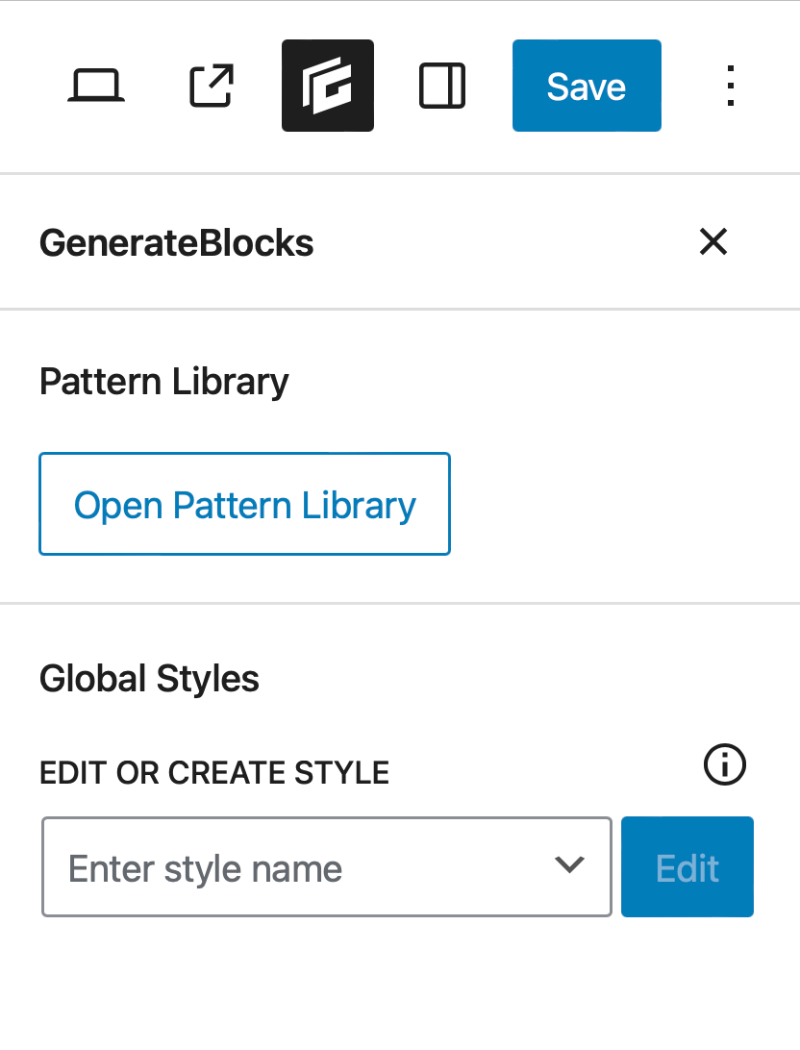
GenerateBlocks Panel
The GenerateBlocks panel provides core functionality related to plugins, including:
- Pattern Library Access Portal
- Global Style Management (Pro Feature)
Using the global styles feature, you can centrally manage style rules across your site without having to modify each block individually.
Panel Structure Description
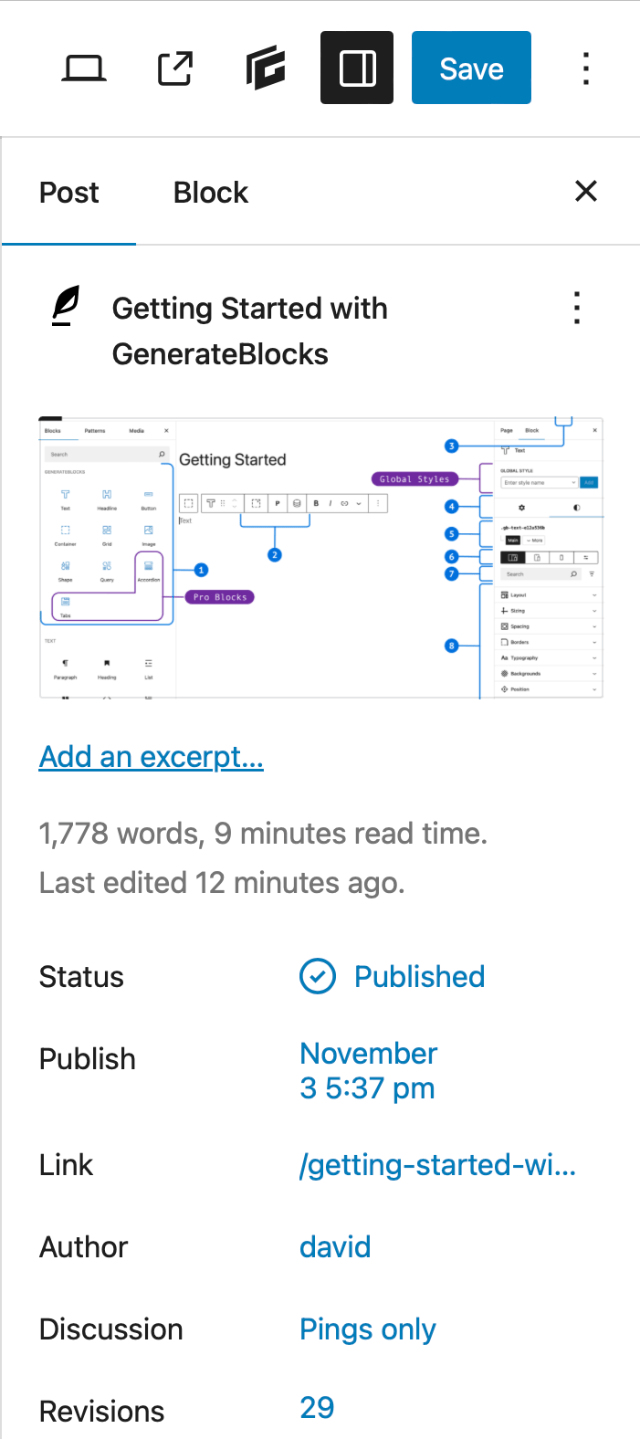
The settings panel typically includes two main tabs:
- Set article tags
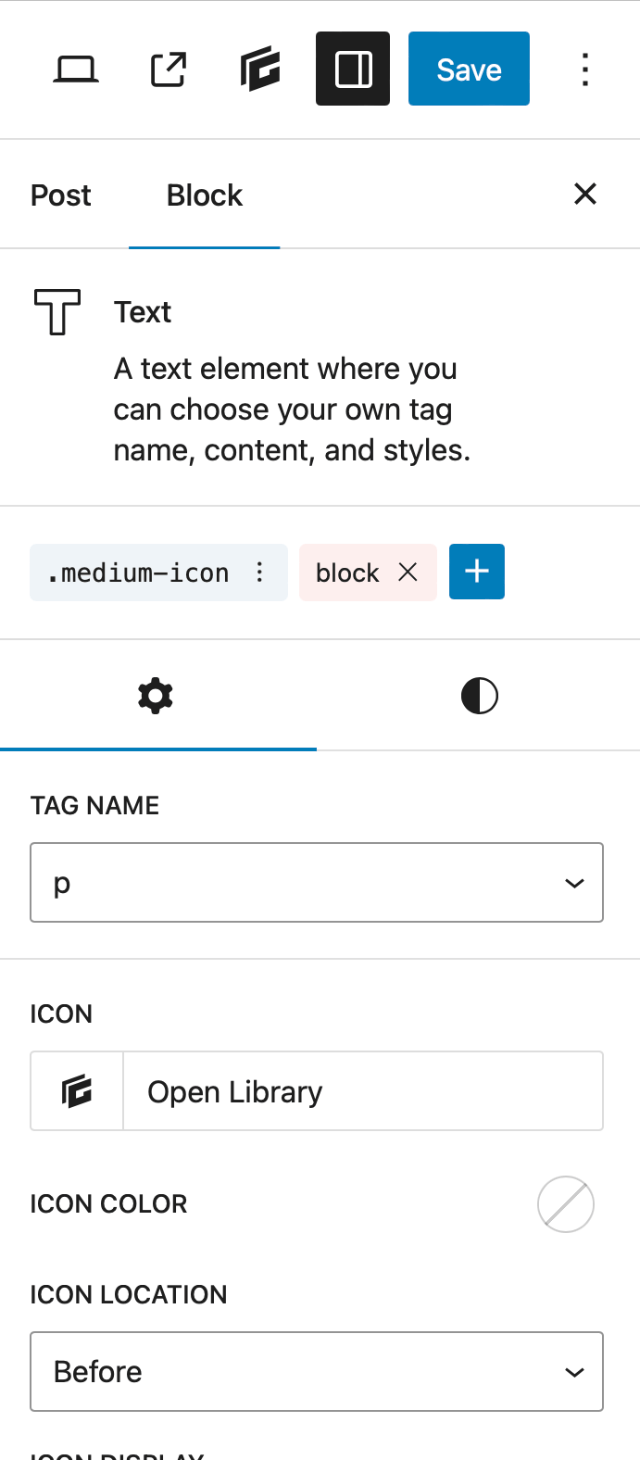
- Block Settings Tab
Post Settings
Article settings are used to manage the status, link structure, categorization information, and theme-related options for the current content.
Block settings display corresponding control options based on the currently selected block.
For GenerateBlocks blocks, each block contains a dedicated configuration area for adjusting layout properties and styling details, enabling more precise and controllable design.
summarize
The WordPress Block Editor already offers robust content editing capabilities. GenerateBlocks' value lies in its ability to supplement these with more powerful layout and styling controls without compromising the native experience.
Once you truly grasp the distinct roles of the top bar, left and right sidebars, and the editing area, combined with GenerateBlocks' block and styling system, the entire editing process becomes clearer, more efficient, and better suited for long-term website maintenance needs.

Link to this article:https://www.361sale.com/en/82858The article is copyrighted and must be reproduced with attribution.
















![Emoji[wozuimei]-Photonflux.com | Professional WordPress repair service, worldwide, rapid response](https://www.361sale.com/wp-content/themes/zibll/img/smilies/wozuimei.gif)

![Emoticon[baoquan] - Photon Wave Network | Professional WordPress Repair Services, Worldwide Coverage, Rapid Response](https://www.361sale.com/wp-content/themes/zibll/img/smilies/baoquan.gif)


 简体中文
简体中文  English
  日本語
日本語  Français
  Español


No comments