





More and more sites are handing front-end performance optimization over to plugins for "one-click fixes," but the two most common pitfalls are often JavaScript "minification" and "lazy loading": sudden page misalignment, carousels freezing, buttons failing to respond. Instead of blindly reverting changes, it's better to first compare againstAutoptimize Plugin OptimizationThe approach involves breaking down the problem into two lines of inquiry: "sequence" and "timing."
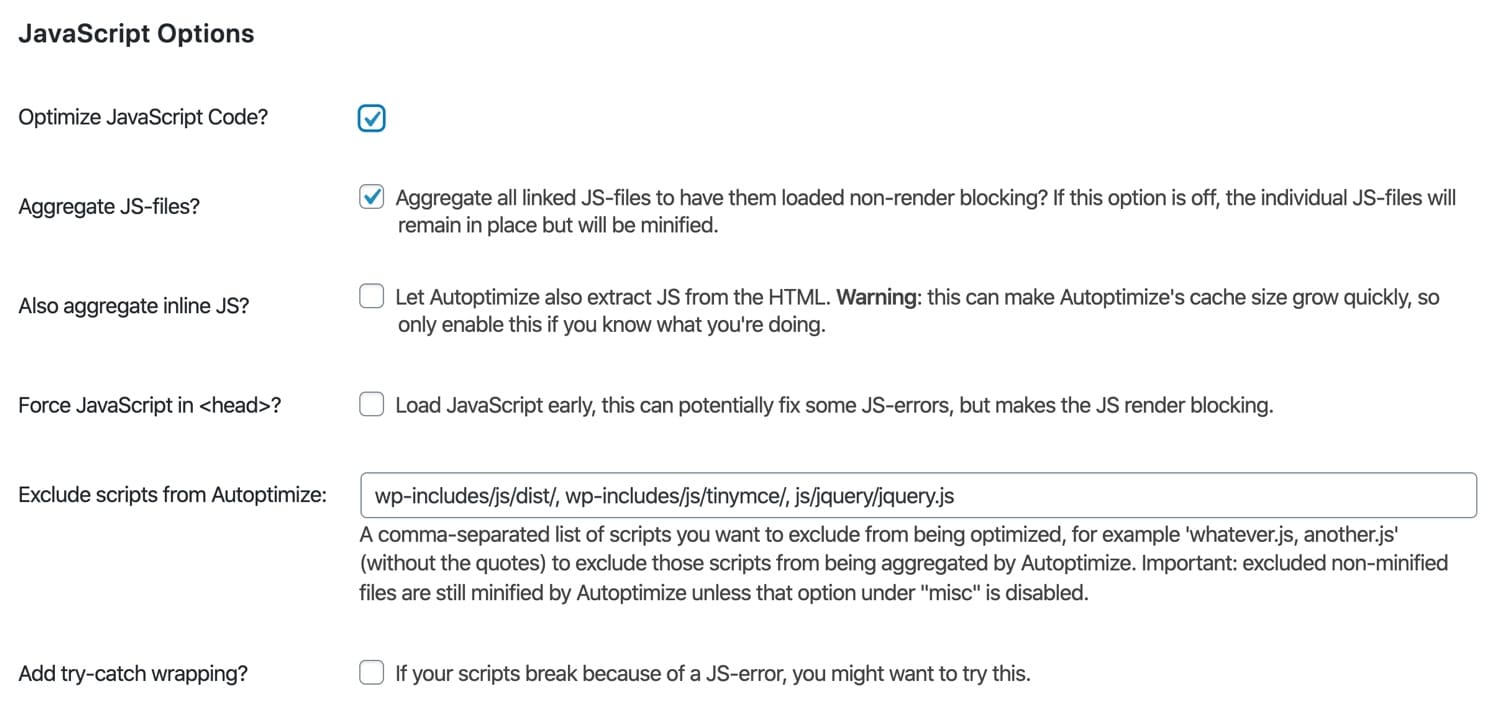
1. First distinguish: The difference between merging JS and deferring JS at the "breakpoint"
1.1 Merging JS: More akin to "reordering queues," with risks concentrated in dependencies and execution order.
The essence of merging JavaScript is combining multiple scripts into fewer files to reduce requests. The problem is: once scripts are reorganized, the original dependency on loading A before B can be disrupted. Some scripts also depend on their position within tags, load attributes, or even the order relative to inline scripts. A typical consequence is that a minor error early on can halt the entire subsequent initialization process. CSS variables aren't written, layout calculations aren't completed, and what you see isn't "slowness"—it's "chaos."
1.2 Delayed JS: More akin to "delayed startup," with risks concentrated in the timing of first-screen rendering and interaction triggers.
The logic behind deferring JavaScript typically involves rendering the page structure and critical styles first, then executing scripts during user interactions, idle time, or after reaching a certain threshold. This approach increases the likelihood of "events that should have been bound earlier" missing their window of opportunity—such as menu hover effects, above-the-fold carousels, scroll-triggered animations, form validation, and price/inventory updates. You'll notice the page looks fine, but interactions feel sluggish—like it's running on dead batteries. Or animations might work intermittently, appearing as if they're randomly malfunctioning.
2. Typical Failure Scenarios and the "Fastest Positioning Method"
2.1 Page Layout Issues: Don't rush to blame CSS—first verify if critical JavaScript failed to execute on time.
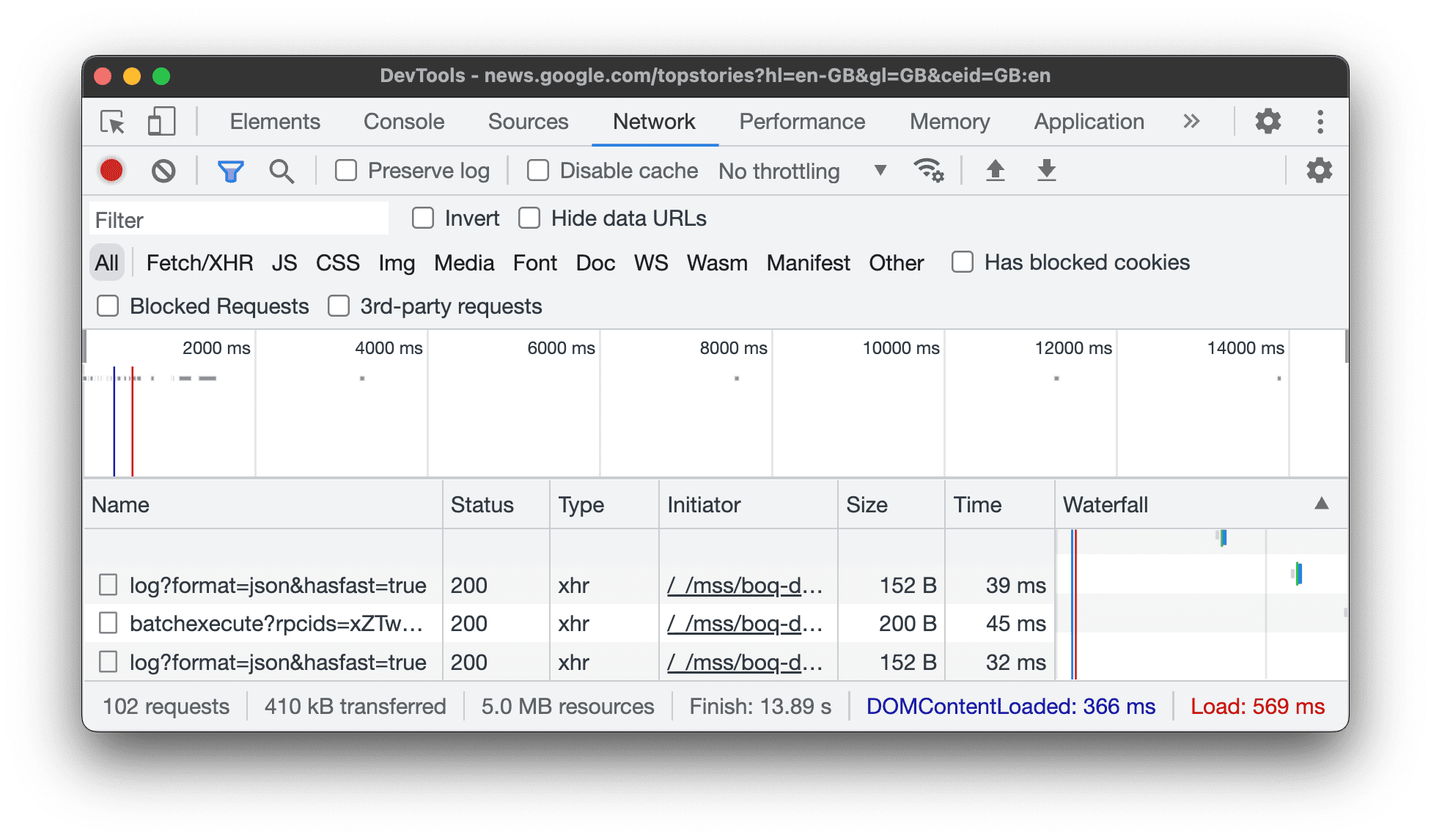
Common "misalignments" are actually layout-dependent scripts: examples include above-the-fold height, sticky headers, modal pop-ups, image placeholders, and waterfall reordering. Delaying these scripts allows the page to render in its "default state" first; merging them may break dependency chains, preventing related scripts from running altogether. The fastest troubleshooting method is: Force a browser refresh and open the Network tab. Observe whether critical scripts appear in the expected sequence, whether they've been split into new combined files, and whether any load failures occur or cached outdated versions are served.
2.2 Animation Failure: Most cases are not due to library corruption, but rather delayed or interrupted initialization timing.
Animations often depend on two things: first, that the DOM is ready, and second, that dimensions and resources have stabilized. Delaying JS may cause animation libraries to start after the first-screen render, missing computations that should be injected during DOMContentLoaded/first layout complete. Merging JS may allow a plugin to execute before its dependencies, causing initialization errors that break the entire animation chain. What you need to track isn't "why the animation isn't moving," but "whether it even started initializing and where the initialization process got stuck."
![Image[3] - Ultimate Fix for Page Layout Issues: Troubleshooting and Fixing Merged/Deferred JS Failures](https://www.361sale.com/wp-content/uploads/2025/12/20251226172956683-profiling-results.png)
3. Troubleshooting Process: From "Turning Off Half" to Pinpoint Accuracy
3.1 Conduct a two-choice experiment first: Test the merger and delay separately.
The most effective first step isn't fine-tuning configurations, but halving variables: enable only delay and disable merging; then enable only merging and disable delay. This allows you to quickly determine whether "misalignment/failure" stems from sequencing or timing issues. If your goal is to reduce rendering blocking while avoiding functional impacts, you can compare against...Reduce rendering blockingThe approach involves layered handling of "critical scripts that only affect the initial screen display" and "enhanced scripts that can be deferred," rather than delaying or merging everything at once.
3.2 Use the console to lock down the first red-letter area: It is often the "first domino."
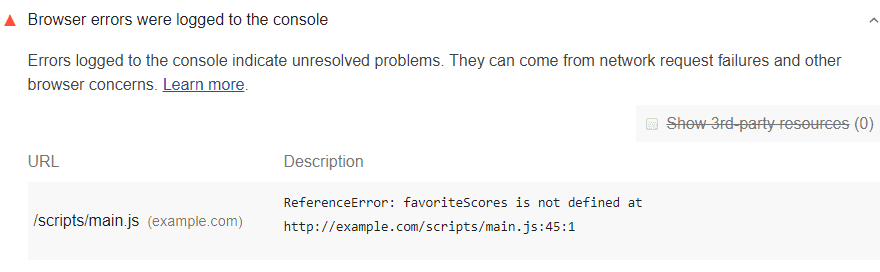
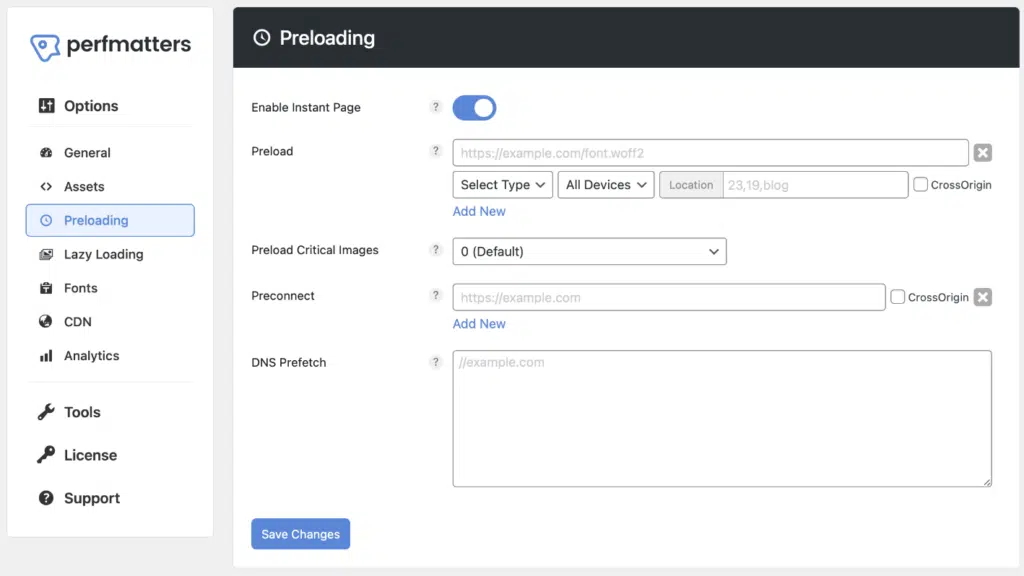
When merging causes dependency mismatches, the earliest error typically invalidates all subsequent initializations. Open the console, force a refresh, pinpoint the first error's file and line number, then return to the resource list to verify: whether its dependencies were merged into another file, whether it was delayed and executed after it, or whether it was excluded by a rule. Many only notice "the page isn't loading," overlooking that "the script actually stopped long ago due to an error." For scenarios involving more complex script management or delay rules, refer toPerfmatters Error ResolutionTroubleshooting approach: First restore the loading and sequence of critical scripts, then gradually narrow down the optimization scope.
3.3 Implement a "whitelist" instead of mindlessly delaying everything: Prioritize scripts that must be executed immediately.
When you confirm the issue stems from delays, the next step isn't to abandon delays altogether, but to create an exclusion list: prioritize excluding scripts that must bind events on the first screen, calculate dimensions on the first screen, or are strongly tied to checkout/interactions. Scripts solely used for analytics, comments, secondary screen animations, or non-critical enhancements can be delayed. E-commerce themes and highly interactive pages are especially sensitive: mistakenly delaying scripts for add-to-cart, variant selection, mini-cart updates, menus, or sticky headers often directly causes "first-click unresponsiveness." If you're using a feature-rich theme like WoodMart, you can reference its exclusion strategy.WoodMart Performance Optimization GuideThe approach of "prioritizing functionality before streamlining": First ensure critical interactions run stably, then refine the latency scope from "page-level" to "module-level."
4. Recovery and Finalization: Clear Caches, Rebuild Resources, Avoid "False Fixes"
4.1 Clearing the Three-Layer Cache: Failure to clear any layer—browser, plugin, or CDN—may lead to misjudgment.
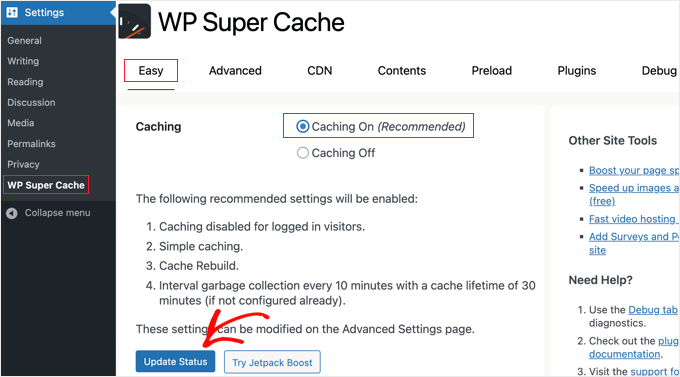
Merging/delaying typically generates new files or alters loading strategies. If the cache continues serving outdated resources, you might perceive this as "changes not taking effect" or "inconsistent results." We recommend processing in this order: first perform forced refreshes and incognito verification, then clear static files generated by cache plugins, and finally address the CDN. If you encounter "some pages displaying correctly while others remain misaligned," this likely indicates inconsistent cache hits. You can proceed as follows:Clear WordPress CacheAfter completely breaking the cache chain, retest.
4.2 Reconstructing Page Build Products: Elementor's CSS/Data Files Often Serve as the "Final Piece of the Puzzle"
When script sequencing and timing are restored but partial misalignments or inconsistent component styles persist, remember the cached outputs from page builders: such as Elementor's generated CSS, data caches, and combined resource files from themes/plugins. Many "JS-like misalignments" are actually caused by old CSS files still being referenced. You canClearing the Elementor CacheTo resolve this issue, first navigate to the Elementor Tools page, then clear and regenerate the relevant files. Finally, return to the frontend to perform a clean comparison test.
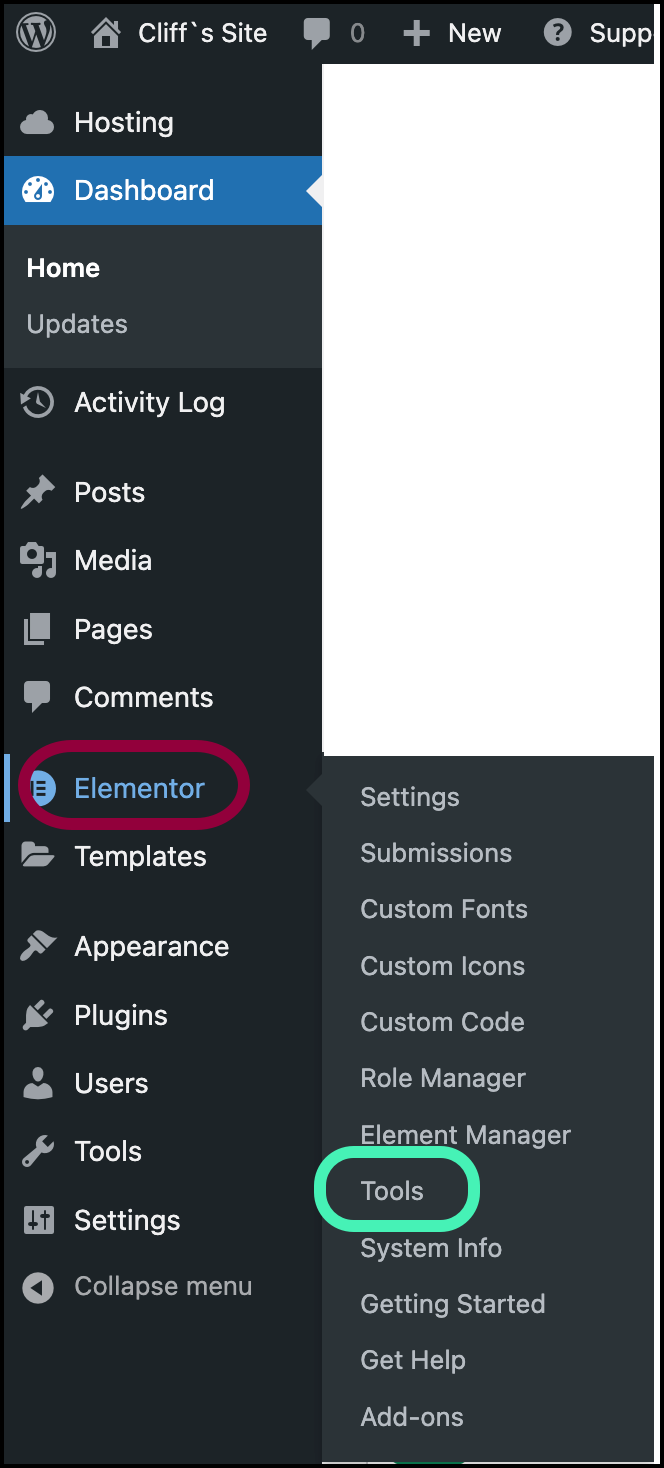
In the Tools page, prioritize processing generated files and data caches that affect site-wide output: The goal here isn't "the more you delete, the better," but to have the builder regenerate resource versions that match your current script strategy. This prevents situations where you've fixed your JS but are still held back by outdated CSS.
![Image[7] - Ultimate Fix for Page Layout Issues: Troubleshooting and Fixing Merged/Deferred JS Failures](https://www.361sale.com/wp-content/uploads/2025/12/20251226172819184-click-clear-files-scaled-1.png)
4.3 Maintain a rollback-ready "safety line": Make optimization a controlled iterative process.
Finally, solidify the findings of this investigation into concrete rules: which scripts must be excluded, which pages prohibit merging, and which modules can be deferred. Before release, validate these changes using a fixed set of retesting actions (first screen, menus, carousels, forms, adding to cart, checkout). By 2026, interactions increasingly rely on frontend initialization. The right approach to optimization isn't "more aggressive," but "more controllable": modify only one element at a time, ensure rollback capability for every change, and clearly explain the rationale behind each adjustment. This way, you reap performance gains without risking site-wide damage from a single misplaced toggle switch.

Link to this article:https://www.361sale.com/en/84435The article is copyrighted and must be reproduced with attribution.
















![Emoji[wozuimei]-Photonflux.com | Professional WordPress repair service, worldwide, rapid response](https://www.361sale.com/wp-content/themes/zibll/img/smilies/wozuimei.gif)

![Emoticon[baoquan] - Photon Wave Network | Professional WordPress Repair Services, Worldwide Coverage, Rapid Response](https://www.361sale.com/wp-content/themes/zibll/img/smilies/baoquan.gif)


 简体中文
简体中文  English
  日本語
日本語  Français
  Español


No comments