




Enabling in multilingual sitesWPML Field TranslationIt is quite a common technical pain point for some pages to have messy layouts, misaligned modules, invalid styles in mobile terminal, and so on. Especially under the combination of Elementor, Divi, Bricks, ACF, etc., a little improper setting, WPML field translation may bring the original normal layout "off".
The following focuses on the core problem of "WPML field translation layout error", from the causes, typical conflict scenarios, systematic troubleshooting path to the solution and prevention techniques, to do a complete sorting, to facilitate direct reference to the technical and content team landing.
I. Why does WPML field translation affect page layout?
1. The page builder relies on field structures that are misaligned if "mistranslated".
Builders such as Elementor, Divi, Bricks, etc. all essentially break the page into groups of structured fields (templates, containers, blocks, etc.).
(coll.) fail (a student) WPML field translation rule settingsWhen not done properly, these fields can be incorrectly copied, omitted, or out of order, resulting in:
- Running version of header/footer styles for some languages
- Layout of the translated version of the homepage does not match the default language
- Misaligned menu or grid layout on mobile
Among the official WPML support cases is "Elementor header misalignment in other languages when WPML is enabledThe solution to this problem is to increase the WP memory and translate the templates separately.
2. Inconsistent translation preference settings for custom fields break data synchronization
WPML provides "translate/copy/untranslate" options for custom fields, which can easily result in custom fields belonging to the same structure (e.g. ACF Flexible Content internal subfields) being set to different translation preferences:
- Translation page field content is missing or empty
- Layout blocks are out of order
- Sub-language content does not match up at all after the main language is adjusted
In the official case of ACF + WPML, it is mentioned several times that Flexible Content or Repeater fields must have uniform translation preferences, and it is recommended to set them to "Translate" or "Replicate Once" and keep them consistent, otherwise the translated version of the It is recommended to set it to "Translate" or "Copy Once" and keep it consistent, otherwise the translation version will not be synchronized correctly.
3. "Translatable settings" error in template and theme builder
Many themes and builders use the "template" mechanism to build headers, footers, and archive pages.
This may occur if these templates are not properly set to "Translatable" in WPML → Settings → Article Type Translation, or if the template is not translated:
- Layout is normal in default language, header and footer are missing in other languages.
- Multi-language pages are loaded with the wrong template, and the overall design "looks like it's broken".
As mentioned in the official WPML case, you need to set the template post type of the theme builder to translatable and translate the header/footer templates in order to restore multilingual layout consistency.
4. WPML + builder + cache / memory configuration mismatch
In some of the sites, the layout misalignment is not from the content of the fields, but rather:
- Insufficient WP memory, incomplete loading of WPML and builder
- The builder enables experimental caching, which is not compatible with WPML
- Multiple layers of caching (plugins, servers, CDNs) cause translated versions to still use the old layout
for example Elementor's "Element Caching" Testing FeatureThe WPML support team has confirmed that this can cause the translated version of the layout to be out of sync, and that you need to turn it off in Elementor → Settings → Features and re-translate the page.
Two,The most common conflict scenarios for WPML field translation
1. Elementor / Divi / Bricks layouts misaligned in translated languages
Typical manifestations include:
- Header menu alignment is messy and navigation is distorted on mobile
- Missing modules or misplaced order in the translated version of the homepage
- Template styles for some languages "look like they're not finished loading".
The official WPML compatibility documentation for Elementor states that Elementor is fully compatible with WPML, but there are some known issues, such as cloud templates not loading correctly in sub-languages, translation templates not being synchronized to all languages, etc.
2. ACF / ACFML results in misplaced content or blank fields
Frequently asked questions when building a website with ACF include:
- Flexible Content on translated pages is out of order.
- Content in the translated version is misplaced after adding a new layout block
- Some languages have empty ACF fields in the backend, and the front-end layout collapses right away
The WPML official Errata and support posts have repeatedly emphasized that Flexible Content and Repeater fields should be unified to set translation preferences and prioritize the use of the WPML Translation Editor instead of manually slicing and dicing the language editing directly on the front end.
3. Site crashes due to String Translation or automatic string registration
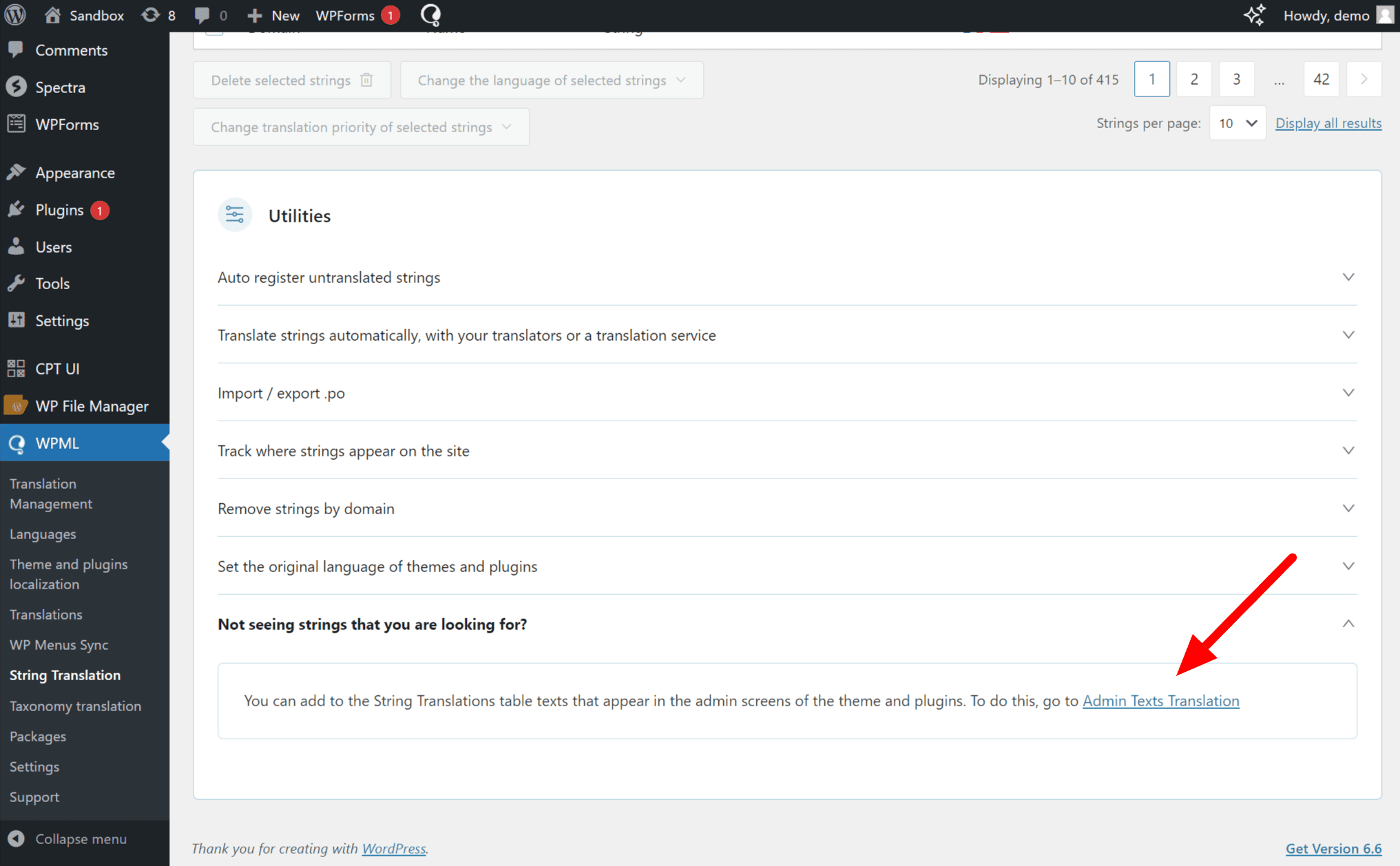
When "Auto String Registration" is enabled in String Translation, there are cases where the display site directly reports errors or blanks, and you can only temporarily disable the plugin to restore the foreground display.
If the layout is highly dependent on strings output by the theme/plugin (e.g. dynamic component titles, category tags, etc.), these elements may not load properly in case of site exceptions, which indirectly results in misaligned layouts or empty blocks.
III. A systematic path for troubleshooting when encountering layout mismatches
1. First of all, confirm the scope of the problem: single-page, single-language or site-wide multi-language
It is recommended to confirm first:
- Is it just one page that is messed up, or is it all translated pages?
- Is there only one language that is wrong, or are all non-default languages abnormal?
- Is it only a desktop problem, or is it worse on mobile
The clearer the scope, the easier it is to determine whether it's a template configuration, field rule, or caching issue.
2. Disable caching and optimization plug-ins to eliminate display layer interference
During the commissioning phase, it may be temporary:
- Disable page caching, server caching, CDN caching
- Disable front-end optimization plugins (the ones that merge and compress CSS/JS)
- Verify that the problem still exists in the "Uncached state".
If the layout returns to normal when there is no cache, it means that the problem is more skewed towards the caching and resource loading layer than the field translation itself.
3. Check the version and memory of WPML and related plug-ins.
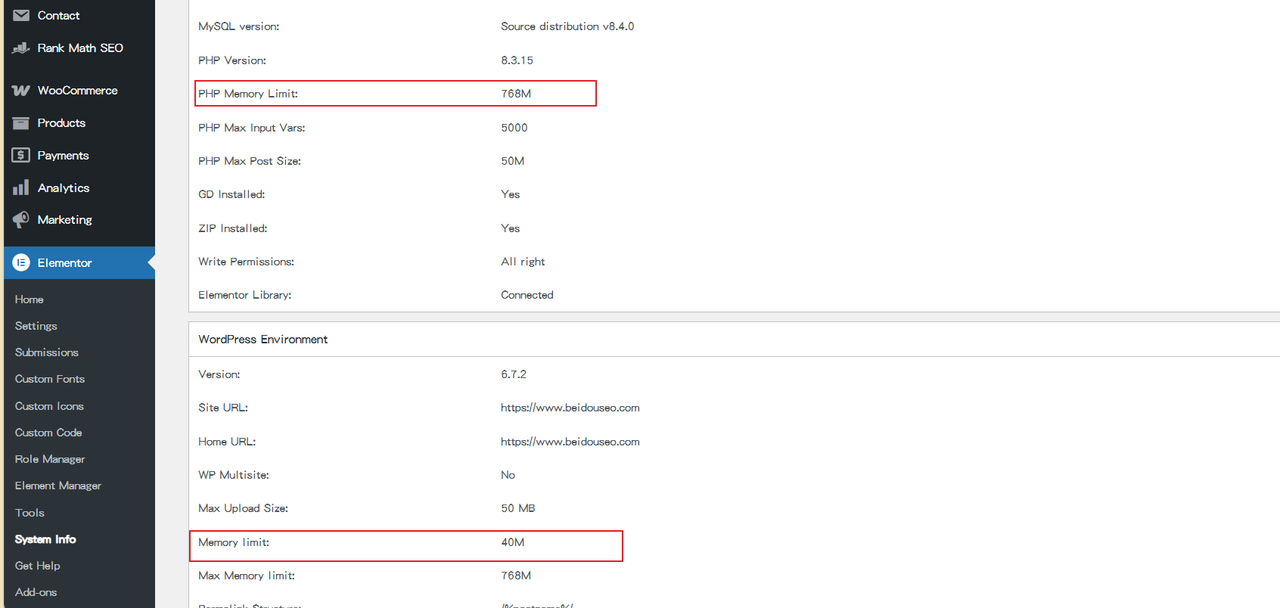
The official WPML documentation requires a minimum WP Memory Limit of 128MB, and multi-language sites often need more, such as 256MB, to run smoothly.
The troubleshooting steps include:
- Make sure that WPML Core, String Translation, ACFML, and the builder plugin are all updated to compatible versions!
- In wp-config.php, upgrade the
WP_MEMORY_LIMITto 128M or 256M - Check to see if the layout misalignment started only after upgrading a particular plugin
4. Comparison of template settings for default and translated languages
Key inspection points:
- Are the theme builder header, footer, and archive templates all translated?
- Whether the corresponding post type of the template is set to "Translatable" and displays the correct language version.
- Whether the language switcher correctly points to the corresponding template or page
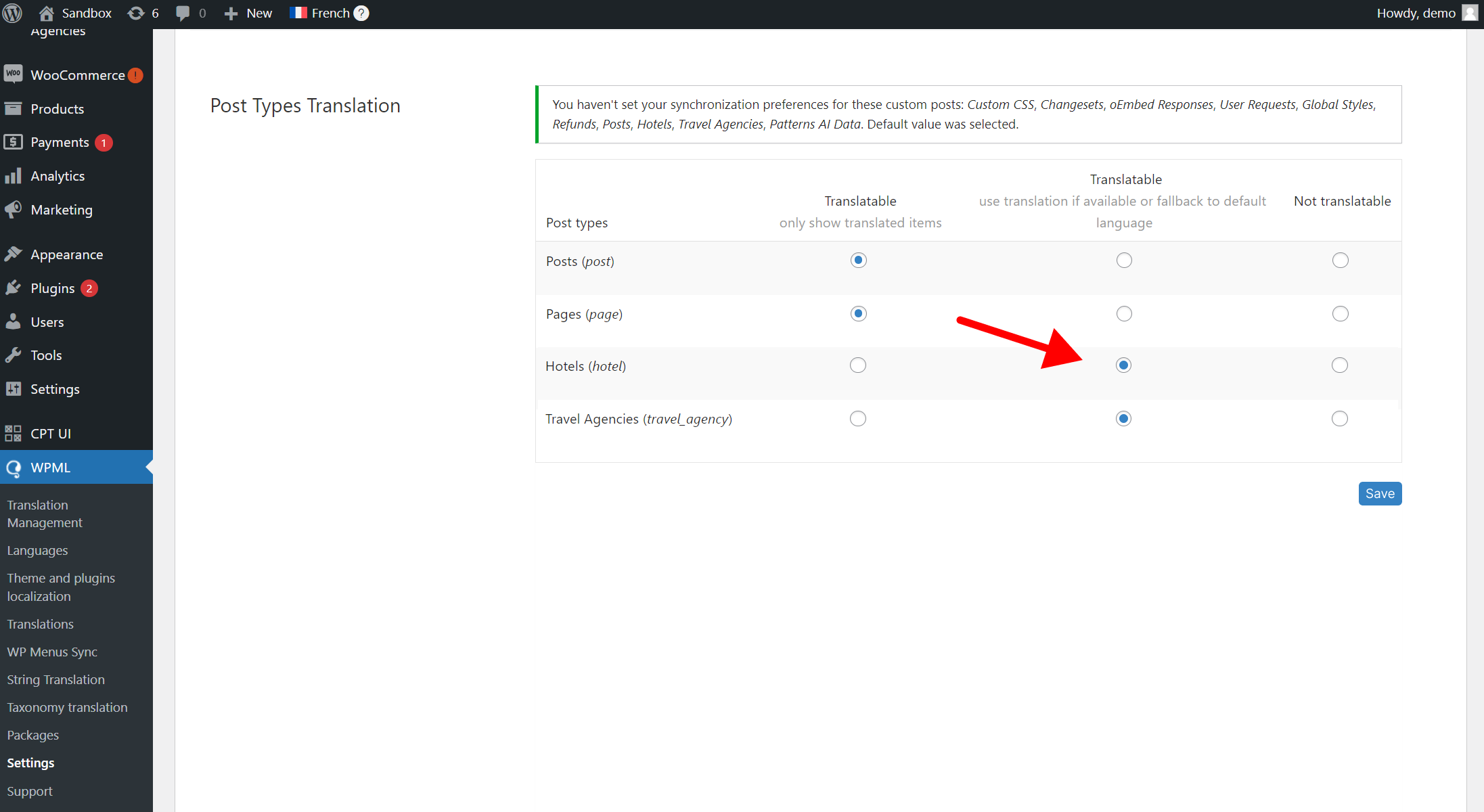
Layout issues have been resolved several times in official support cases by "setting the template post type to translatable and translating the header/footer template".
5. Checking translation preferences for customized fields
For layout related fields, the focus should be on checking:
- Consistency of translation preferences for all subfields in an ACF field group
- Whether Flexible Content / Repeater / Layout related fields are set according to the official recommendations.
- Are there fields that are incorrectly set to "copy", causing all languages to share the same layout state?
Official case studies show that setting the translation properties of all fields in Flexible Content uniformly and using Classic/Advanced Translation Editor can significantly reduce the probability of layout mismatches.
Common Solutions and Configuration Suggestions for WPML Field Translation
1. Generic processing ideas for page builder scenarios
with regards to Elementor, Divi, Bricks, and such builders, are recommended:
- Set all key templates (Header, Footer, Archive, Single) as translatable and translate them one by one
- Uniformly send templates to the translation editor in the WPML translation manager instead of copying pages directly
- Avoid manually rebuilding the template structure in the translated version to reduce the chance of errors during synchronization
Some cases also suggest that Elementor's experimental features such as Element Caching are not yet fully compatible with WPML, so if you encounter a translated layout that is not updatable, you can try disabling this feature.

2. Recommended settings for ACF / ACFML combinations
For ACF + WPML:
- Set "Translate" for text fields, "Replicate" for image fields, "Copy" for Flexible / Repeater or "Copy Once" for Flexible / Repeater and make sure that the properties of the entire set of fields are consistent
- Use ACFML extensions instead of relying only on core WPML
- Avoid adjusting the Flexible Content block order directly in the translated version, try to adjust it in the default language before synchronizing it.
3. controlling the scope of String Translation use
String Translation is powerful, but should be avoided:
- Enable "auto-register all strings" by default to avoid introducing a large number of useless strings or even triggering an exception.
- Manage all fields that are clearly part of the content block as String, rather than centrally through the translation editor
A more sensible approach would be:
- Processing page and field content with the translation editor
- Use String Translation to process "interface copy" output by themes, plugins, widgets.
V. Daily Practices for Preventing WPML Field Translation Conflicts
1. Establishing a multilingual development process
Planned early in the development:What to use ACF forThe WPML translation methods are planned along with what will be done with the builder module and what will be done with the theme settings.
2. Harmonize field and template specifications
Develop team specifications for field naming, translation preferences, and template structure to avoid multiple people modifying the same module in different ways.
3. Layout regression testing before and after version updates
After each update of WPML, builder or theme, use the fixed checklist to test: the layout performance of the Home Page, Key Landing Page, Product Listing Page, Form Page in all languages.
4. Rationalize the use of test environments
Before going live, test new plugins, features or field structures in a staging environment to make sure they don't conflict with WPML field translations before synchronizing them.

Link to this article:https://www.361sale.com/en/81577The article is copyrighted and must be reproduced with attribution.












![Emoji[wozuimei]-Photonflux.com | Professional WordPress repair service, worldwide, rapid response](https://www.361sale.com/wp-content/themes/zibll/img/smilies/wozuimei.gif)

![Emoticon[baoquan] - Photon Wave Network | Professional WordPress Repair Services, Worldwide Coverage, Rapid Response](https://www.361sale.com/wp-content/themes/zibll/img/smilies/baoquan.gif)


 简体中文
简体中文  English
  日本語
日本語  Français
  Español


No comments