




Many WordPress sites use Cloudflare as their default frontend protection and acceleration layer. However, when you encounter a "Cloudflare Error 500," the actual failure often isn't with Cloudflare itself—it's the origin server returning an internal server error while processing the request. If you want to start by troubleshooting the WordPress side, you can refer to the troubleshooting guide within the site.500 Internal server errorQuickly pinpoint where the problem lies in the system.
More specifically, Cloudflare merely forwards requests at the edge node: when it receives a failure response like a 500 error from the origin server, or encounters an exception while waiting for the origin server, it wraps the error page as a "Cloudflare Error 500" and displays it to visitors. Therefore, troubleshooting should not stop at "clearing cache or switching browsers," but rather involve examining the distinct responsibilities of Cloudflare and the origin server separately.
1. What exactly does Cloudflare Error 500 mean?
1.1 The 500 you see may be a "retransmission" rather than the "source location."
When Cloudflare is in proxy mode, visitors access Cloudflare's edge nodes rather than your server directly. Fatal PHP errors, plugin conflicts, database connection failures, or issues with permissions and rewrite rules on the origin server will cause it to return a 500 error. Cloudflare then passes this failure on to users, making it appear as though "Cloudflare is showing an error."
![Image[2] - Cloudflare Error 500 Ultimate Troubleshooting Guide: Quick Fix for Internal Server Error](https://www.361sale.com/wp-content/uploads/2025/12/20251229102823322-2fc1537453efd5b300c8a009969a650d5c2e494c.jpeg)
1.2 Cloudflare's "acceleration feature" can also amplify certain underlying issues.
Caching, compression, script merging, WAF rules, and bot protection alter the form of requests reaching the origin server: the same page functions normally when directly accessed without a proxy, but after proxying, it triggers different headers, different cache keys, and different firewall evaluations. This transforms the origin server's previously sporadic errors into high-frequency, reproducible 500 errors. This issue is particularly common after theme/plugin updates or changes to page builder settings, as these modifications often cause problems that only manifest at the proxy layer.
2. Why does WordPress encounter an internal server error?
2.1 Fatal Errors and Compatibility Conflicts at the Code Layer
Common causes of WordPress 500 errors include PHP execution interruptions: a plugin calling a non-existent function, theme templates incompatible with the current environment, or abnormal autoload paths. You might have made a seemingly harmless configuration change, only for the frontend to display a blank screen or return a 500 error. If your site uses performance plugins or script management tools, it is recommended to refer toWhat to do when a website malfunctionsThis rollback approach—where errors occur immediately after modifying settings—involves systematically undoing recent changes one by one for verification.
2.2 Resource Layer Bottlenecks: Processes, Memory, Timeouts, and Queue Backlogs
When traffic spikes, background tasks trigger simultaneously, or an API endpoint is repeatedly retried, PHP-FPM/Apache/Nginx may experience queue backlogs. This can cause requests to time out or be outright rejected by the server, resulting in a 500 error. Even if Cloudflare nodes remain online, the origin server may be in a "living but suffering" state: accessible, yet overwhelmed.
2.3 Configuration Layer's Little Pitfalls: Overlapping Rule Overrides, Permissions, and Error Pages
Incorrect .htaccess or Nginx rules can cause legitimate requests to enter infinite loops, redirect storms, or incorrect PHP entry points. Improper file permissions may also prevent WordPress from accessing critical files, ultimately resulting in a 500 error. Worse still, when error handling is wrapped in multiple layers of proxies, the original error message gets "swallowed," leaving you with only a generic "Internal Server Error."
3. Follow these three steps first: Quickly determine whether the issue is on the Cloudflare side or the origin server side.
3.1 First, Make the Cache "Make Way": Temporarily Bypass the Edge Layer Impact
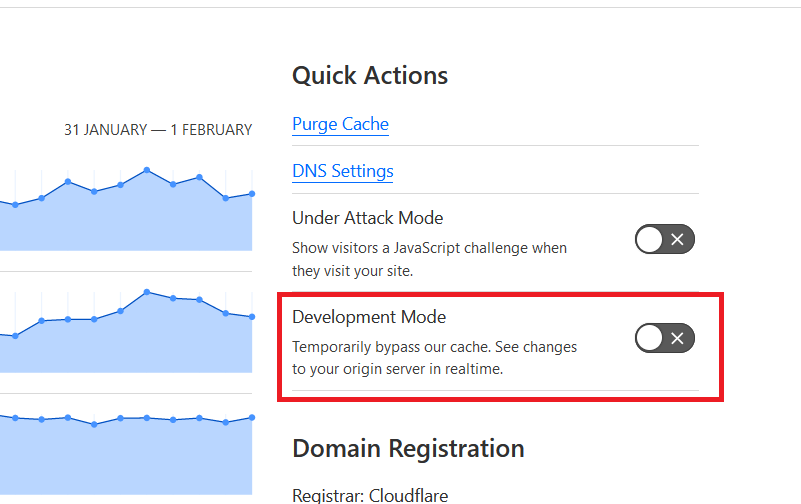
The key to troubleshooting is narrowing down variables: You can temporarily enable developer mode or use a more "direct" access method to observe whether the 500 error disappears immediately. If bypassing these steps restores normal functionality, the issue is likely related to cache keys, compression merging, or certain security rules triggering; conversely, if the 500 error persists, refocus your efforts on the origin server application layer and server layer.
3.2 Using browser developer tools to uncover clues closer to the truth
Many 500 errors aren't site-wide failures, but rather stem from a specific API endpoint, template, or asynchronous request going wrong. Opening your developer tools will reveal which request first returned a 500, whether the response headers include proxy layer markers, and if frontend script errors occurred simultaneously. If you're experiencing frequent 500s while editing or saving in Elementor, you can cross-reference these details.Unable to save 500This scenario-based troubleshooting pinpoints the issue to the editor's request chain.
![Image[4] - Cloudflare Error 500 Ultimate Troubleshooting Guide: Quick Fix for Internal Server Error](https://www.361sale.com/wp-content/uploads/2025/12/20251226151425190-Screenshot_of_Chrome_DevTools_console_tab.png)
3.3 Prioritize confirming whether the backend can be accessed before determining the troubleshooting path.
If the frontend shows an error 500 but the backend remains accessible, this typically indicates an issue with a frontend rendering pipeline or a specific plugin feature. You can proceed with a more gradual rollback approach. If the backend is also inaccessible, this suggests a critical error or resource-level bottleneck. In such cases, you should swiftly disable conflicting components, restore backups, or directly examine server error logs.
4. Troubleshoot WordPress source sites in order from most common to hardest to trace
4.1 Start with Plugins: Restore Site Responsiveness First, Then Trace the Root Cause
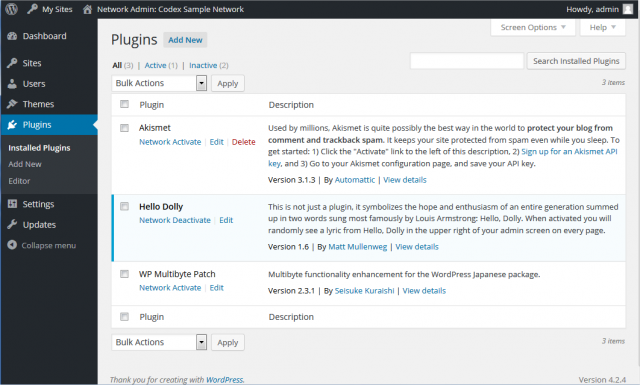
Plugin conflicts are one of the most common causes of 500 errors, especially when they occur suddenly after updates or enabling new features. The best strategy is to first restore site accessibility: temporarily deactivate suspicious plugins, enable them one by one for regression testing, and document which plugin triggers the error when activated. For a more systematic troubleshooting sequence, refer toplug-in conflictThe troubleshooting process transforms "guessing" into "verification."
4.2 Theme and Builder-Related: Isolating the "Rendering Path" with Security Mode
When the error 500 occurs on a specific page, template, or when saving in the editor, the theme and builder are the prime suspects. The value of Safe Mode lies in its ability to temporarily isolate third-party plugins and themes without completely altering the site structure. This helps you determine whether the error originates from the builder itself or from an extension interacting with the theme. You can combineElementor Security ModeThe approach distinguishes between "editor loading failure" and "site-wide 500 error."
4.3 Rewriting and Linking Rules: Don't Overlook "Invisible Entries"
Many people focus solely on the server when configuring 500 errors, yet overlook how URL rules themselves can redirect requests to incorrect entry files: permalinks, redirects, language/category paths, and custom shortlinks can all impact routing. Especially after URL structure adjustments, migrations, or bulk link changes, it's advisable to review link generation and rewrite logic to prevent chain reactions from "rule upon rule." When systematic organization is needed, you can refer to...Custom URL linkThe configuration approach unifies internal links with the rewrite strategy to reduce the likelihood of triggering 500 errors again.

Link to this article:https://www.361sale.com/en/84408The article is copyrighted and must be reproduced with attribution.
















![Emoji[wozuimei]-Photonflux.com | Professional WordPress repair service, worldwide, rapid response](https://www.361sale.com/wp-content/themes/zibll/img/smilies/wozuimei.gif)

![Emoticon[baoquan] - Photon Wave Network | Professional WordPress Repair Services, Worldwide Coverage, Rapid Response](https://www.361sale.com/wp-content/themes/zibll/img/smilies/baoquan.gif)


 简体中文
简体中文  English
  日本語
日本語  Français
  Español


No comments